¶ Creating a lab
You create a lab with a five-step wizard. This page walks through the Custom wizard in full, because it has the most options, then explains how the Preconfigured, Hypervised, Shared, Wise and Cloud wizards differ.
Each lab type has its own Request page under Labs in the sidebar, for example Custom > Request.
The wizard only creates the lab on the final step. You can use BACK to change earlier answers, or CANCEL at any point to leave without creating anything.
¶ Before you start
- Make sure you have enough credits. Check AVAILABLE CREDITS on the dashboard or Billing.
- To predict what a lab will cost, use Lab estimation first.
- Know the dates and times the lab should run, how many trainees will use it, and what software they need.
¶ The five steps
| Step | Custom, Hypervised, Shared, Wise | Preconfigured |
|---|---|---|
| 1 | General Info | Technology |
| 2 | Configure Machines | Configure Machines |
| 3 | Schedule | Schedule |
| 4 | Parameters | Parameters |
| 5 | Review | Review |
A tick appears on a step when you complete it. NEXT stays disabled until the required fields on the current step are filled in.
¶ Step 1: General Info
Select Custom > Request.
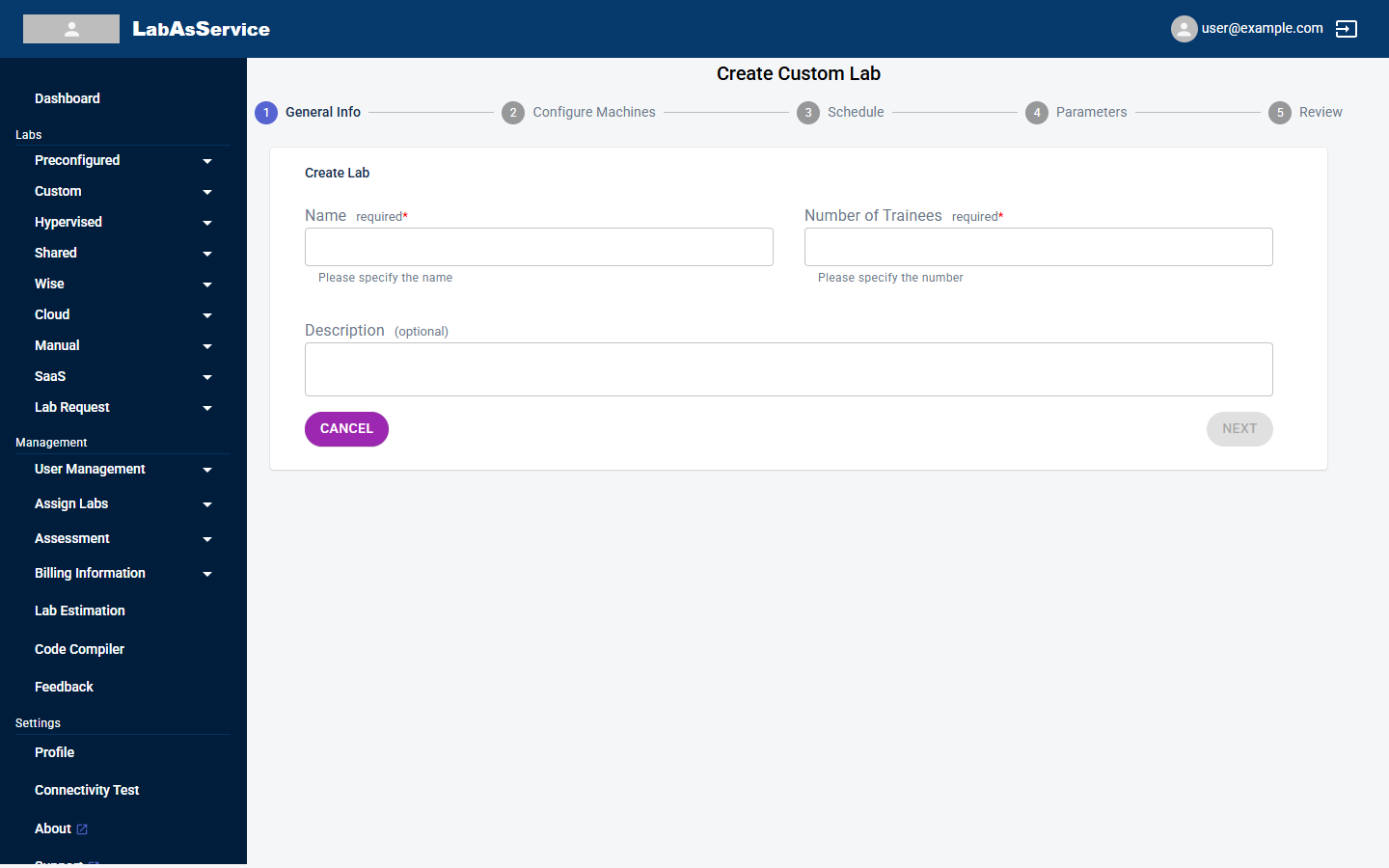
| Field | Required | Notes |
|---|---|---|
| Name | Yes | Any name you like for the lab |
| Number of Trainees | Yes | How many people will use the lab. Include the trainer's own lab in this count |
| Description | No | A short description |
Select NEXT.
¶ Step 2: Configure Machines
Select ADD to add a server. The page shows how many servers you have added and the limit. Custom labs allow up to five servers.
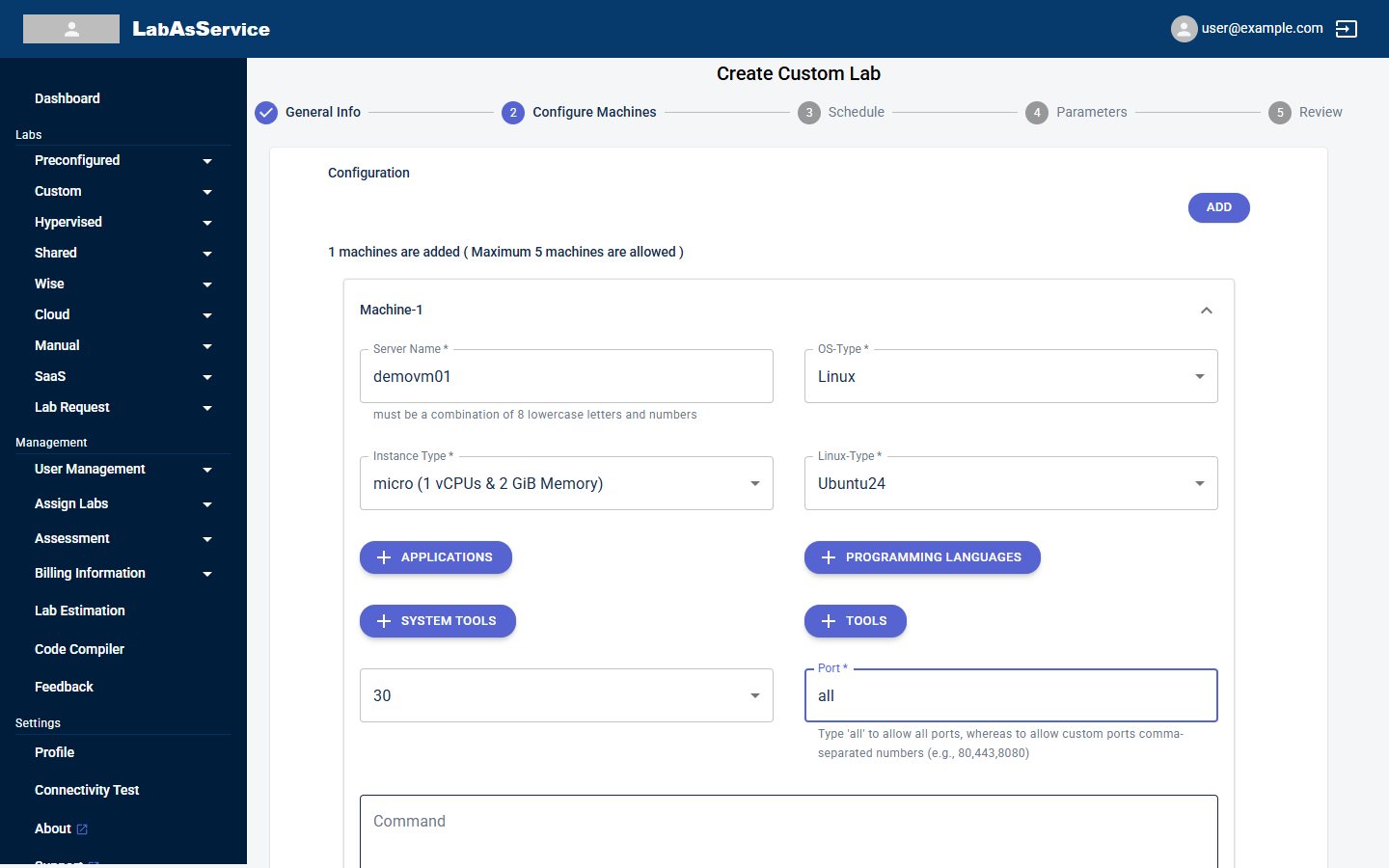
For each server, fill in:
| Field | Notes |
|---|---|
| Server Name | Must be a combination of 8 lowercase letters and numbers, for example demovm01 |
| OS-Type | Linux or Windows |
| Instance Type | The size of the server: nano (1 vCPU, 1 GiB), micro (1 vCPU, 2 GiB), small (2 vCPUs, 2 GiB), medium (2 vCPUs, 4 GiB), large (2 vCPUs, 8 GiB), xlarge (4 vCPUs, 16 GiB) or 2xlarge (8 vCPUs, 32 GiB) |
| Linux-Type | The operating-system version: Rocky8, Rocky9, Alma8, Alma9, Ubuntu20, Ubuntu22 or Ubuntu24 |
| APPLICATIONS, PROGRAMMING LANGUAGES, SYSTEM TOOLS, TOOLS | Optional. Select each button to choose supported software, with versions, to install on the server |
| Storage | The disk size: 30, 60, 125, 250, 500 or 1000 |
| Port | The ports to open in the firewall. Type all to open all ports, or a comma-separated list such as 80,443,8080 |
| Command | Optional. A command to run when the server is created |
To remove a server, use its delete icon. Select NEXT when every server is complete. NEXT stays disabled until you have added at least one complete server.
¶ Step 3: Schedule
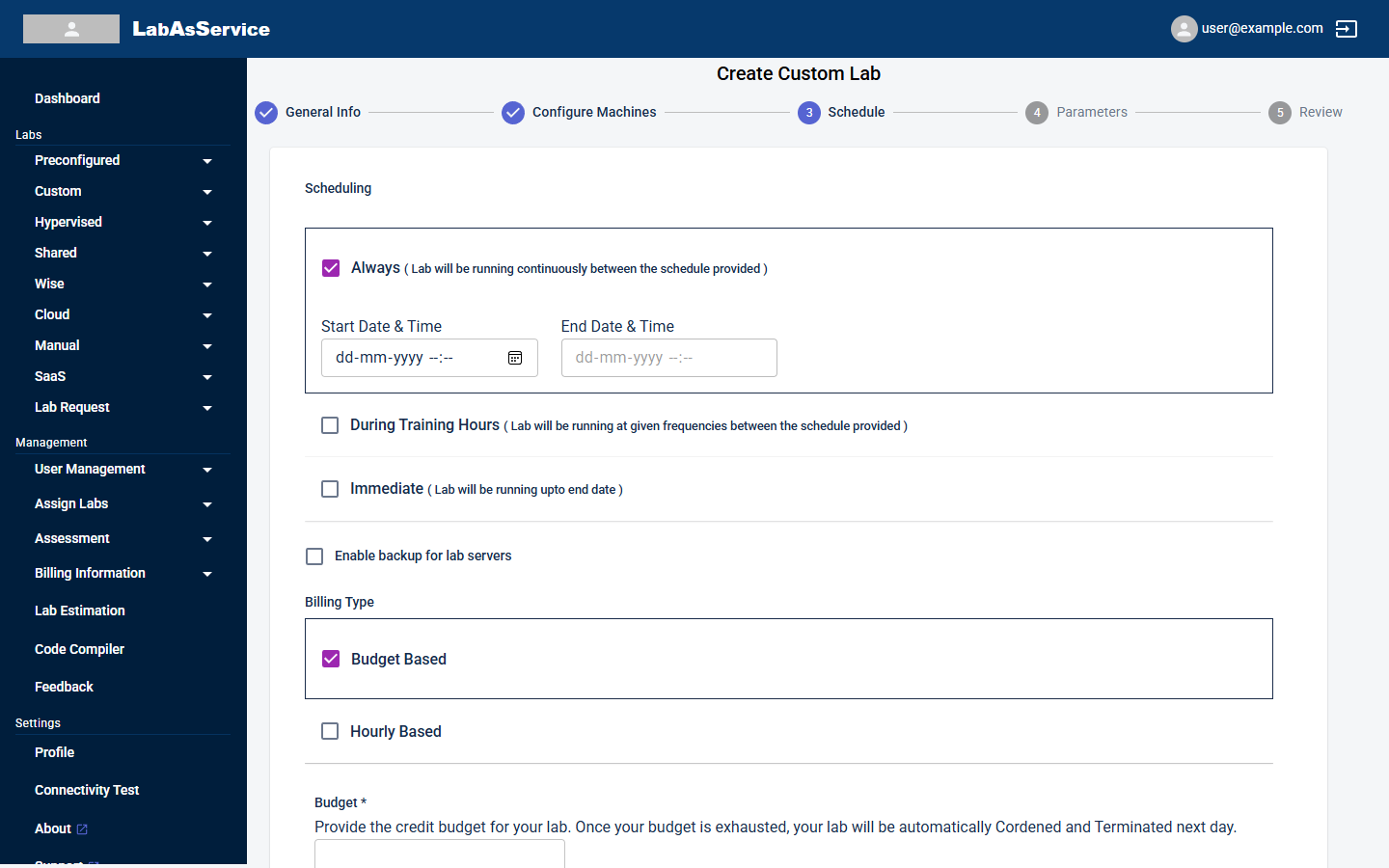
Choose when the lab runs.
¶ Schedule type
Choose one of three types.
| Type | What happens |
|---|---|
| Always | The lab runs continuously between the start and end date and time you give |
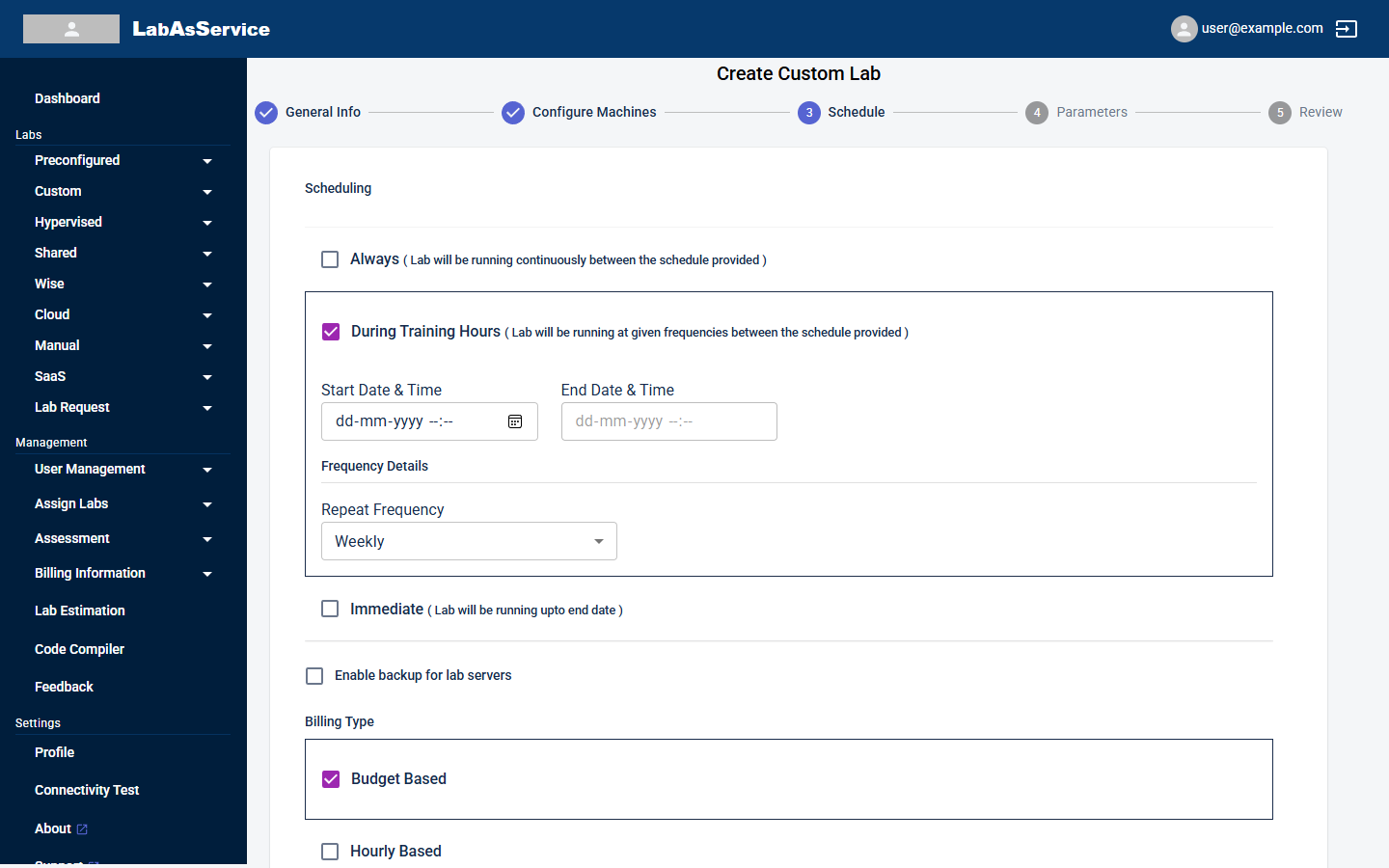
| During Training Hours | The lab runs only during daily training hours, between the start and end dates. The time of day in your start and end values is used as every day's start and stop time |
| Immediate | The lab starts as soon as the request is complete and runs until the end date and time you give |
For Always, fill in Start Date & Time and End Date & Time.
For During Training Hours, fill in the same fields, and also Repeat Frequency to decide which days the lab runs:
- Specific Day's: you pick individual dates between the start and end dates.
- Weekly: you pick the days of the week.
For Immediate, fill in only End Date & Time.
¶ Backup
Select Enable backup for lab servers to back up the lab servers.
¶ Billing type
Choose Budget Based or Hourly Based. For Budget Based, enter a Budget in credits.
Once the budget is used up, the lab is automatically cordoned and then terminated the next day. Set the budget with some margin.
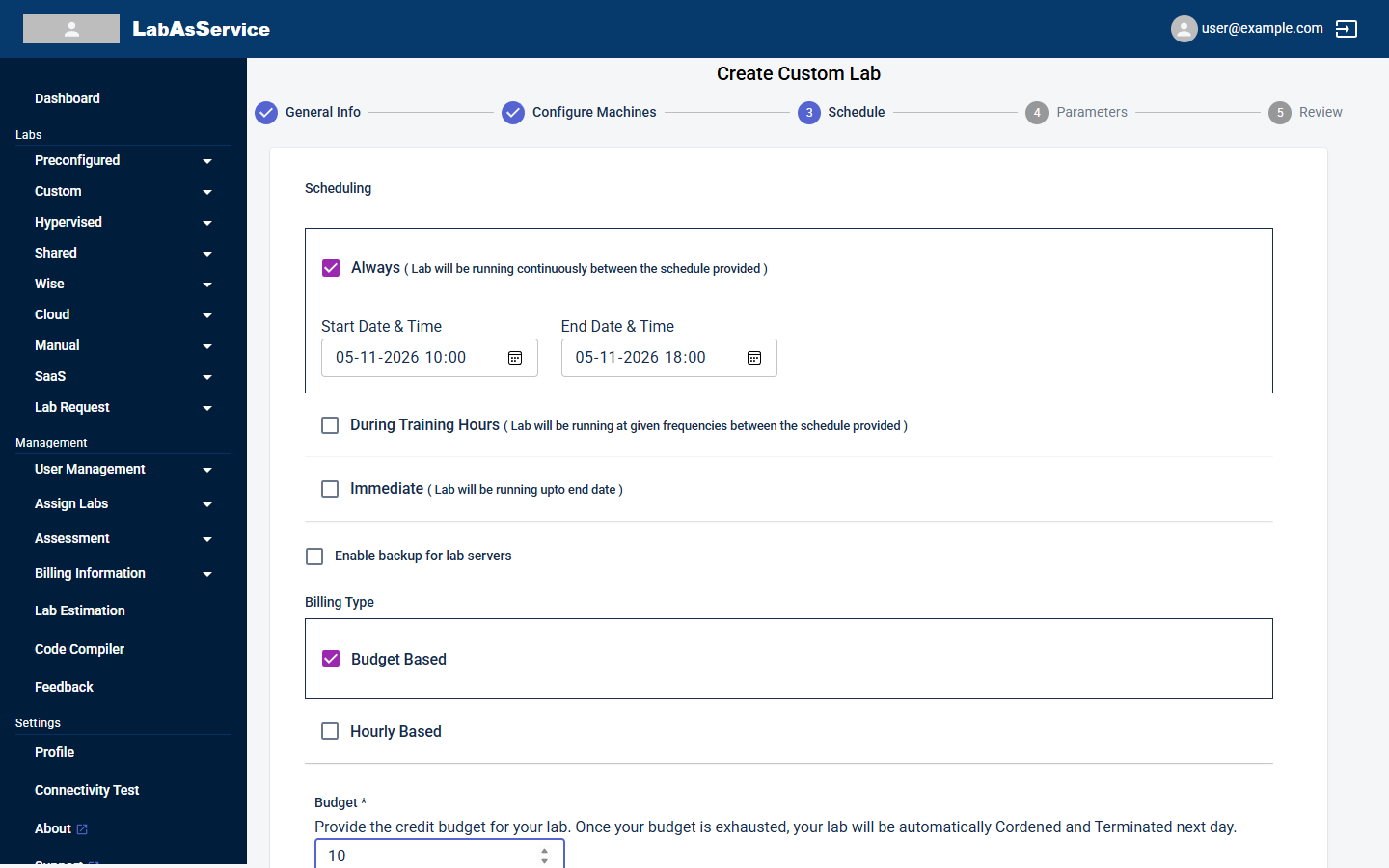
Select NEXT.
¶ Step 4: Parameters
Parameters control notifications and trainee options.
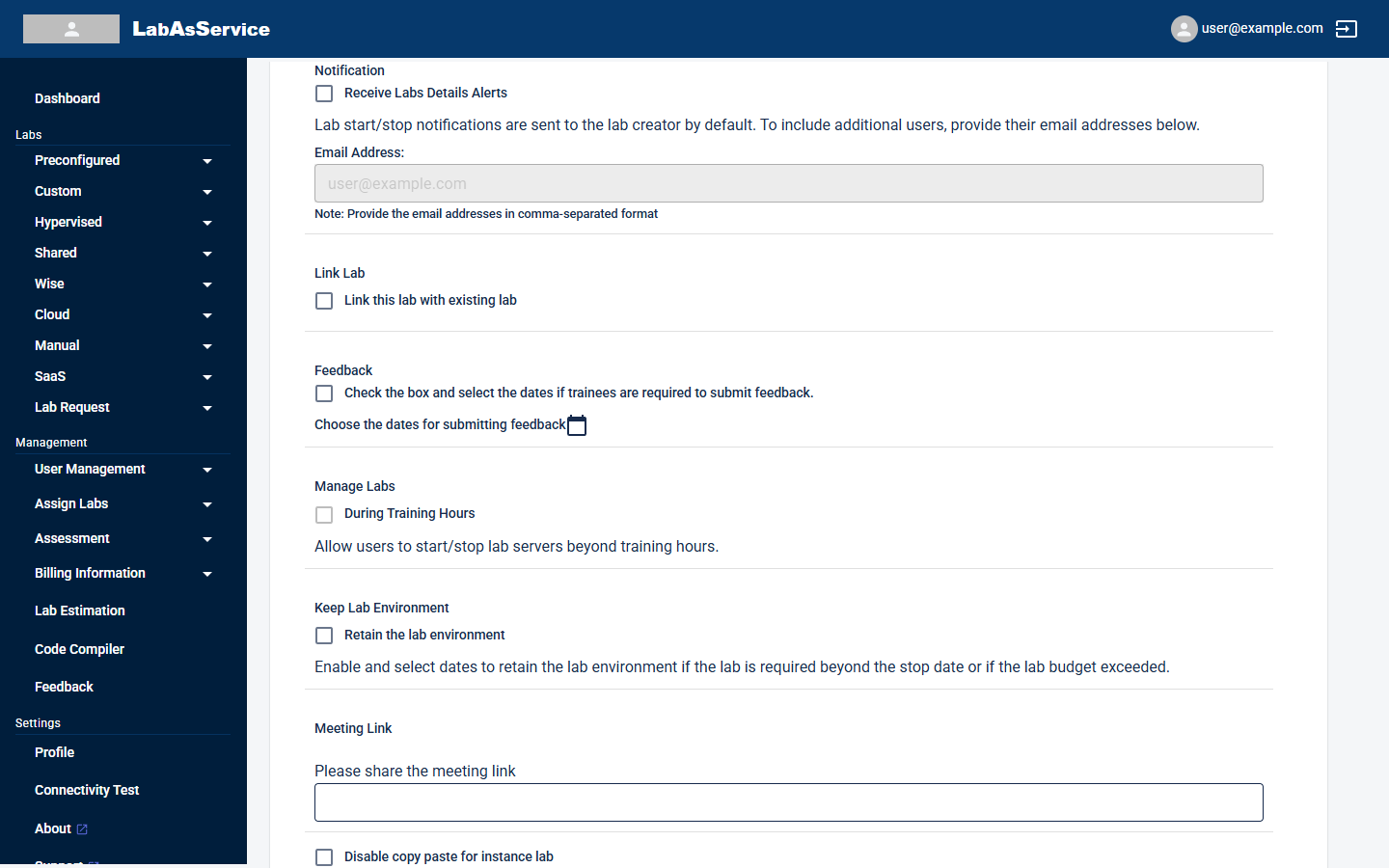
| Option | What it does |
|---|---|
| Receive Labs Details Alerts | Lab start, stop and termination notifications go to the lab creator by default. Select this and enter more email addresses, separated by commas, to notify other people |
| Link this lab with existing lab | Links this lab to a lab that already exists |
| Feedback | Select it and choose the dates if trainees must submit feedback |
| Manage Labs: During Training Hours | Lets users start and stop lab servers beyond the training hours |
| Keep Lab Environment: Retain the lab environment | Keeps the lab after its stop date, or after its budget is used up, for the dates you choose. Retained resources continue to cost credits |
| Meeting Link | The link to the training session, which trainees see on their lab page |
| Disable copy paste for instance lab | Stops copy and paste in the lab console |
| Set identical password on all servers | Uses one password across all the lab's servers |
All of these are optional. Select NEXT.
¶ Step 5: Review
Check everything before you create the lab.
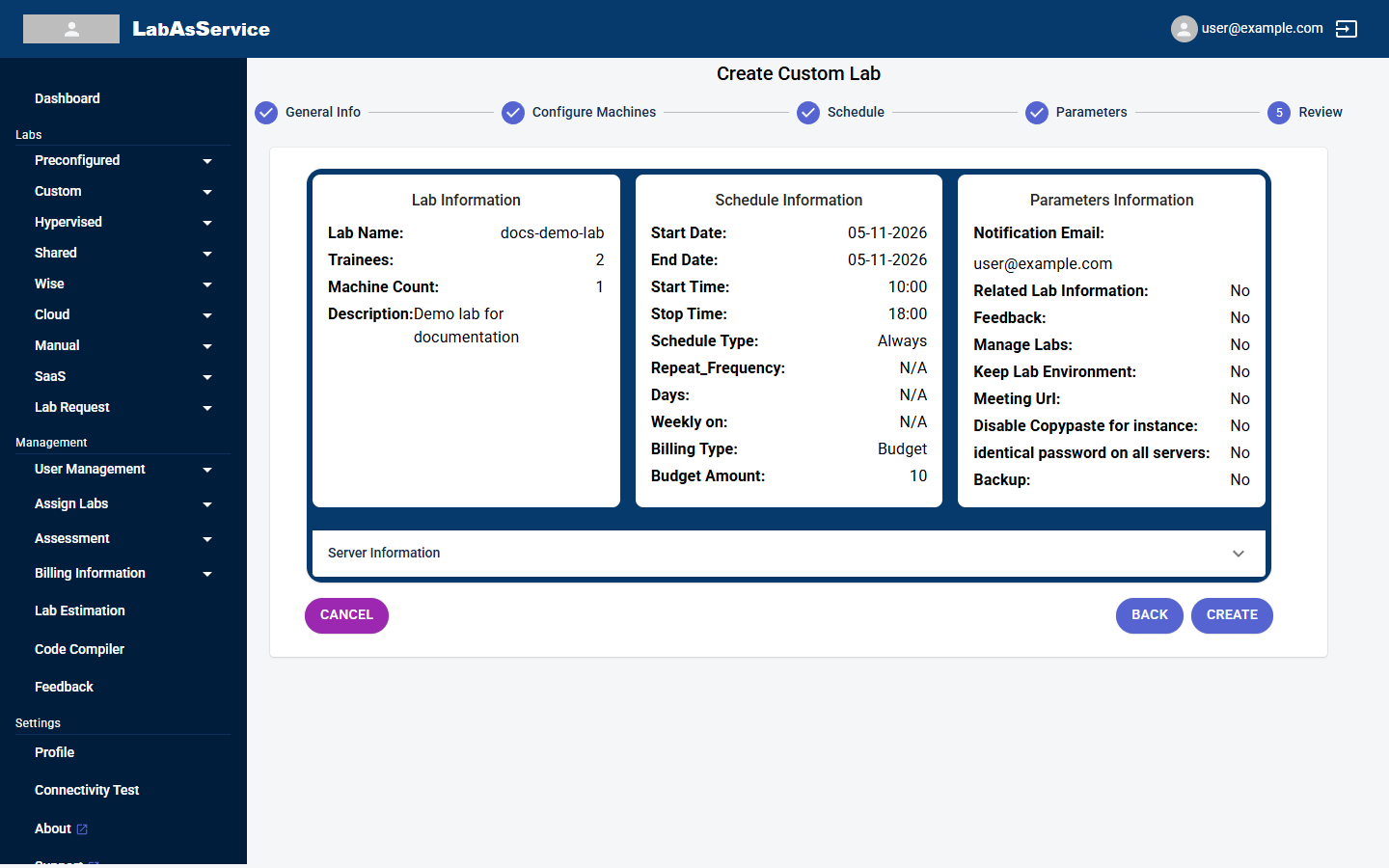
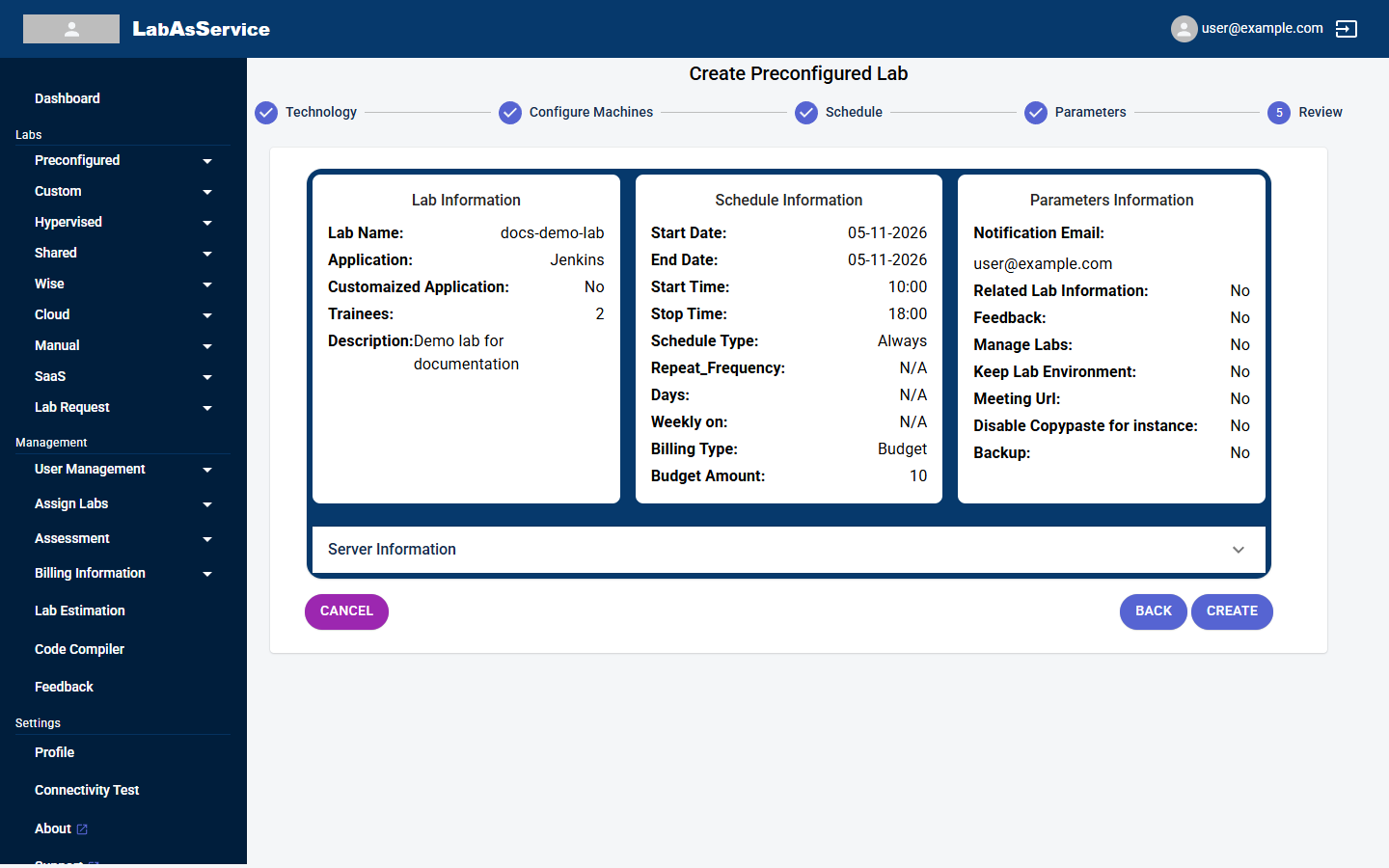
The page shows three panels:
- Lab Information: name, number of trainees, machine count and description
- Schedule Information: start and end dates and times, schedule type, repeat details, billing type and budget
- Parameters Information: notification email and each option from step 4, shown as Yes or No
Select Server Information to expand the list of servers.
If anything is wrong, select BACK. When you are satisfied, select CREATE to create the lab.
¶ After you create a lab
- A confirmation email goes to you, as the lab creator.
- The lab appears under Running Labs for its type. See Managing running labs.
- Its schedule appears on the type's Schedule page. See Schedules.
- The lab details, including login information, are emailed to the lab creator on the scheduled day.
- Assign trainers and trainees under Assign Labs. See Assigning trainers and trainees.
¶ How the other lab types differ
¶ Preconfigured
Step 1 is called Technology and asks you to choose the application.
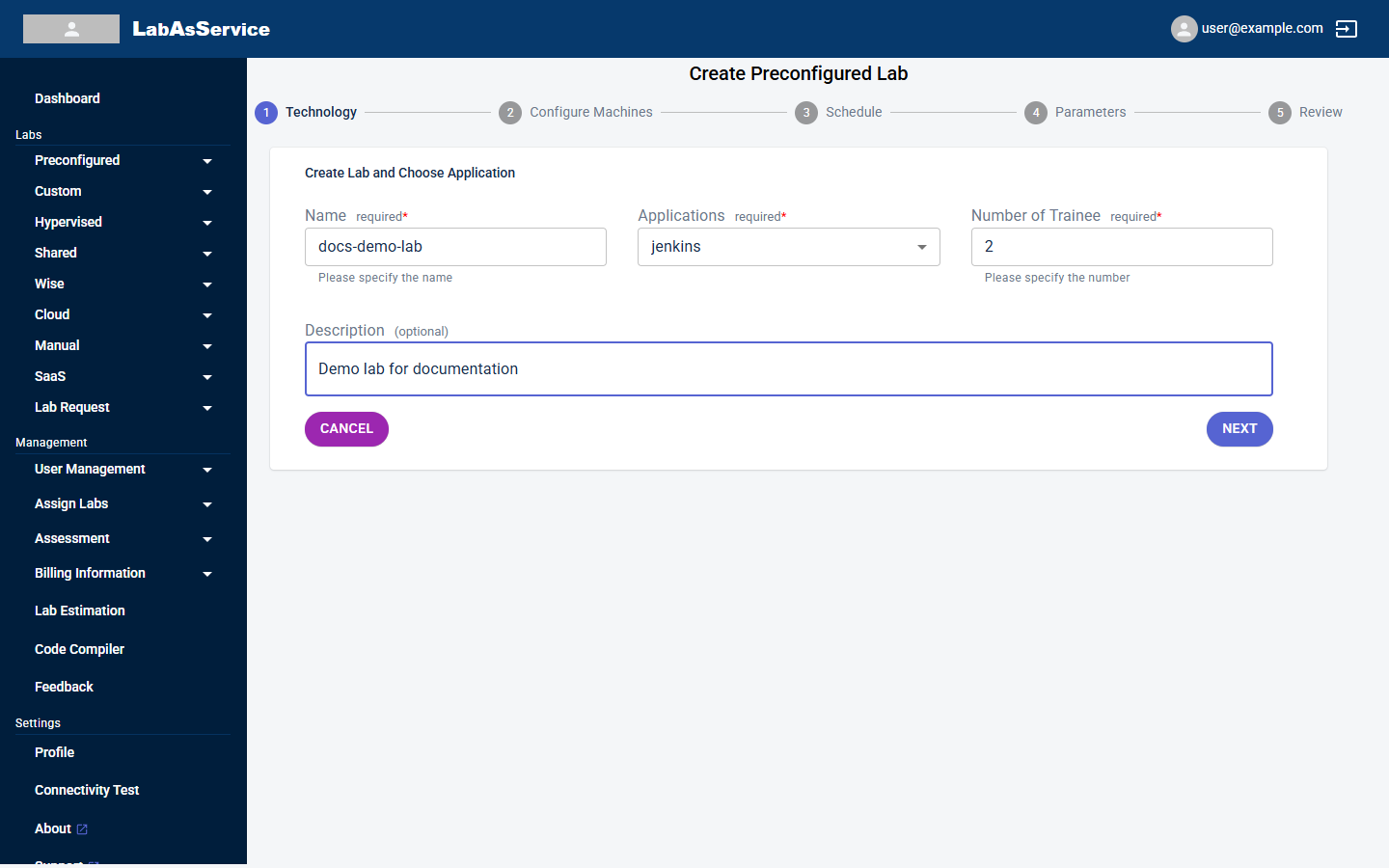
| Field | Required | Notes |
|---|---|---|
| Name | Yes | |
| Applications | Yes | The application to install, for example Jenkins, Ansible, Kubernetes or Docker |
| Number of Trainee | Yes | |
| Description | No |
Step 2 is called Application Requirement. The platform fills in the recommended servers for the application you chose, for example the Jenkins master and node sizes, storage and ports. The fields are locked. Select Customize to change them. The page notes the minimum requirement for each server.
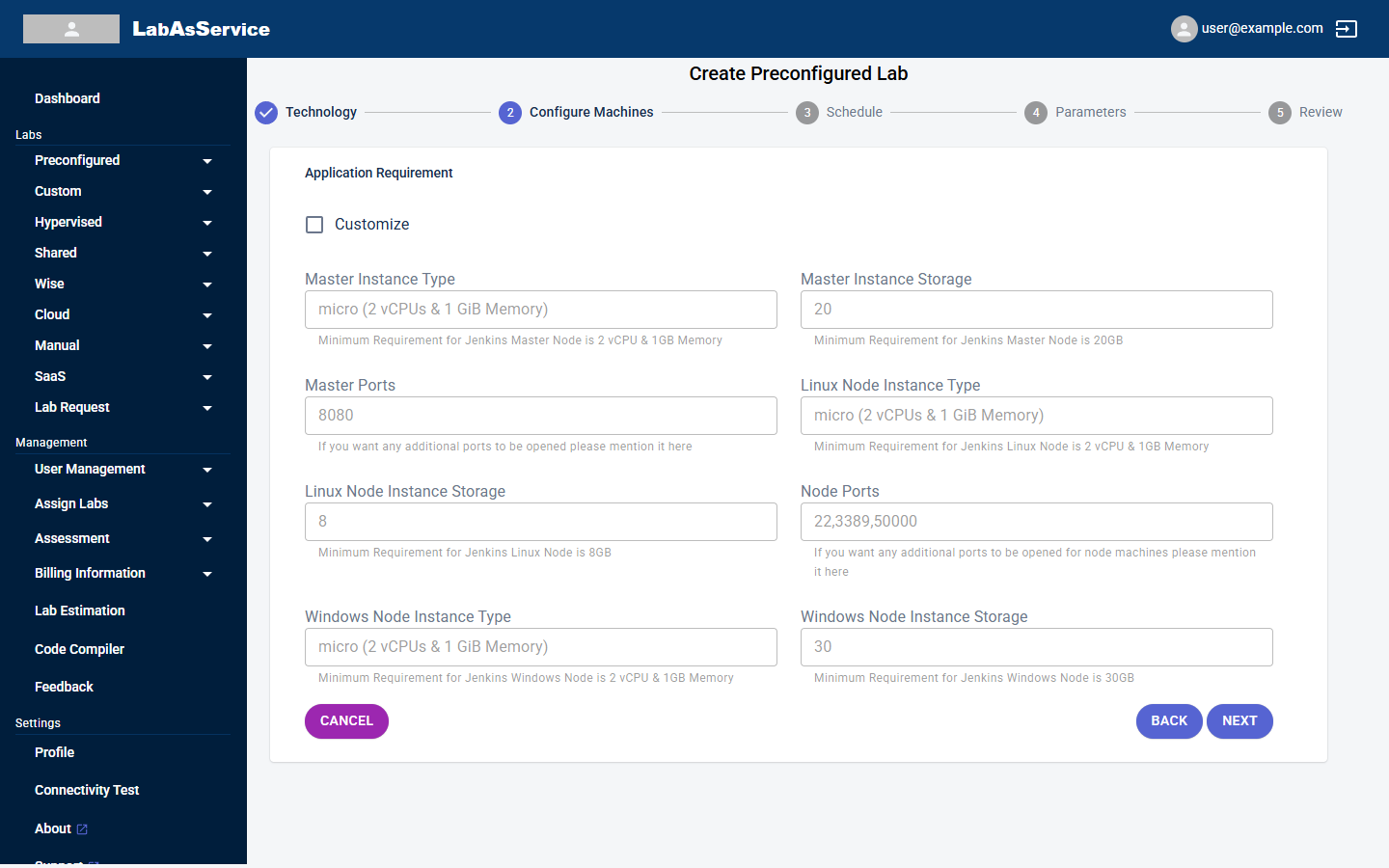
Steps 3 to 5 are the same as for Custom. The Review panel also shows the Application and whether it was customised.
¶ Hypervised
The steps are the same as Custom, and you select ADD to add each server. Steps 3 to 5 (Schedule, Parameters and Review) are the same as for Custom. The server options differ:
| Field | Options |
|---|---|
| Instance Type | medium (2 vCPUs, 8 GiB), large (2 vCPUs, 16 GiB), xlarge (4 vCPUs, 16 GiB) or 2xlarge (8 vCPUs, 32 GiB) |
| Linux-Type | Centos7, Centos8, Rocky8, Rocky9, Alma8, Alma9, Ubuntu20, Ubuntu22 or Ubuntu24 |
¶ Wise
The steps and server options are the same as Custom, including the nano to 2xlarge instance types.
¶ Shared
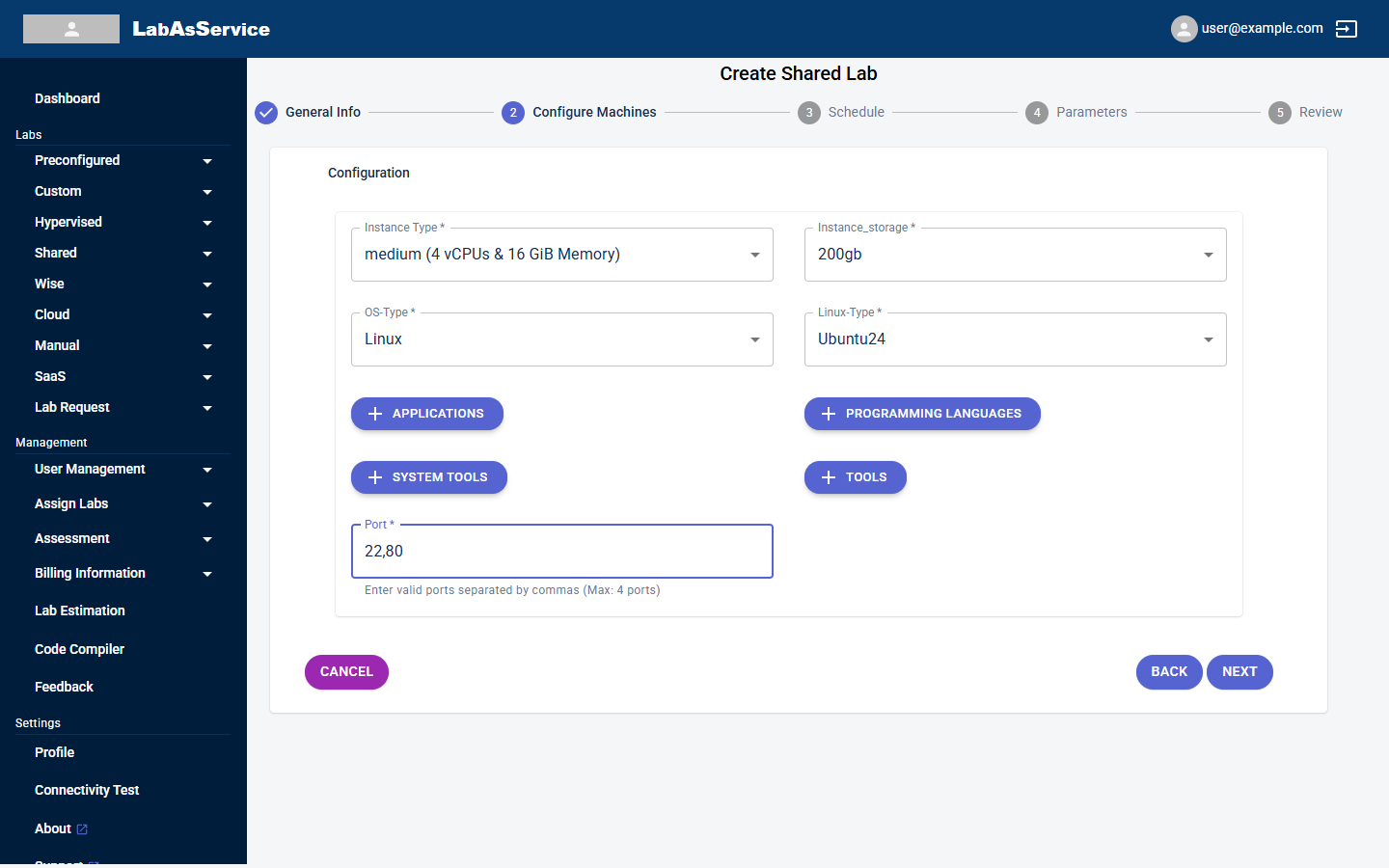
Enter a number of trainees in multiples of 4. In step 2 you configure one server instead of adding several. Steps 3 to 5 are the same as for Custom.
| Field | Options |
|---|---|
| Instance Type | medium (4 vCPUs, 16 GiB), large (4 vCPUs, 32 GiB), xlarge (8 vCPUs, 32 GiB) or 2xlarge (16 vCPUs, 64 GiB) |
| Instance_storage | 200gb or 500gb |
| OS-Type | Linux or Windows |
| Linux-Type | After you choose Linux: Centos7, Centos8, Ubuntu20, Ubuntu22 or Ubuntu24 |
| APPLICATIONS, PROGRAMMING LANGUAGES, SYSTEM TOOLS, TOOLS | Optional software to install |
| Port | Up to four ports, separated by commas |
¶ Cloud
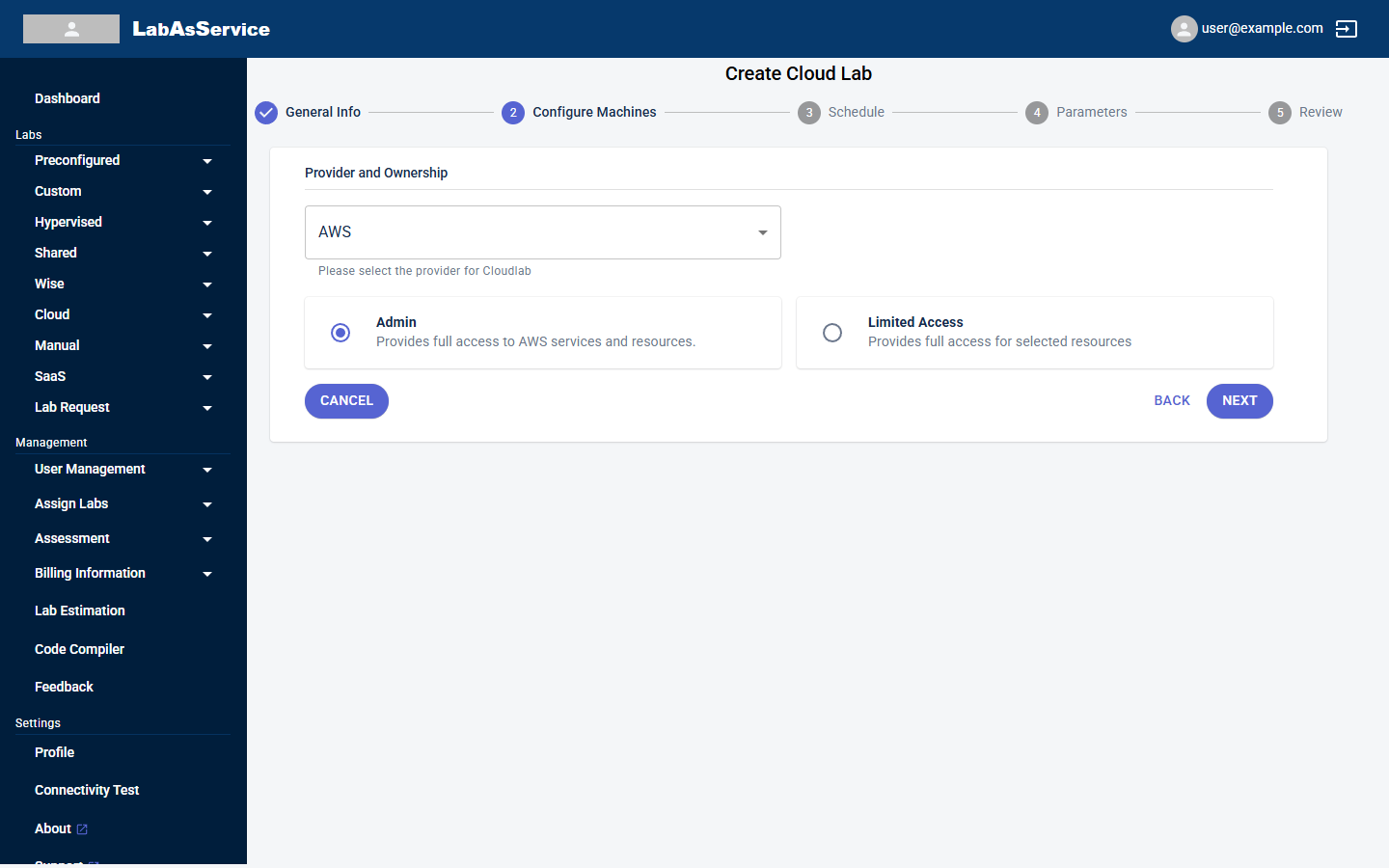
Cloud labs ask only for a Name and Number of Trainees in step 1. Step 2 is Provider and Ownership, where you choose the cloud provider: AWS, Azure or GCP.
The remaining steps are shorter than Custom:
- Schedule: the same three schedule types, but only Budget Based billing (enter the Budget in credits). There is no backup option and no Hourly Based billing.
- Parameters: Receive Labs Details Alerts, Feedback, Manage Labs, Keep Lab Environment, Meeting Link and Disable copy paste for instance lab. There is no Link this lab with existing lab option and no Set identical password on all servers option.
- Review: the same summary, then CREATE.