¶ Assigning trainers and trainees
Creating a lab does not give anyone access to it. Use Assign Labs in the sidebar to connect labs with the people who will use them. It has two pages: Assign Trainee and Assign Trainer.
Create the users first. See User management.
¶ Assign trainees
Select Assign Labs > Assign Trainee.
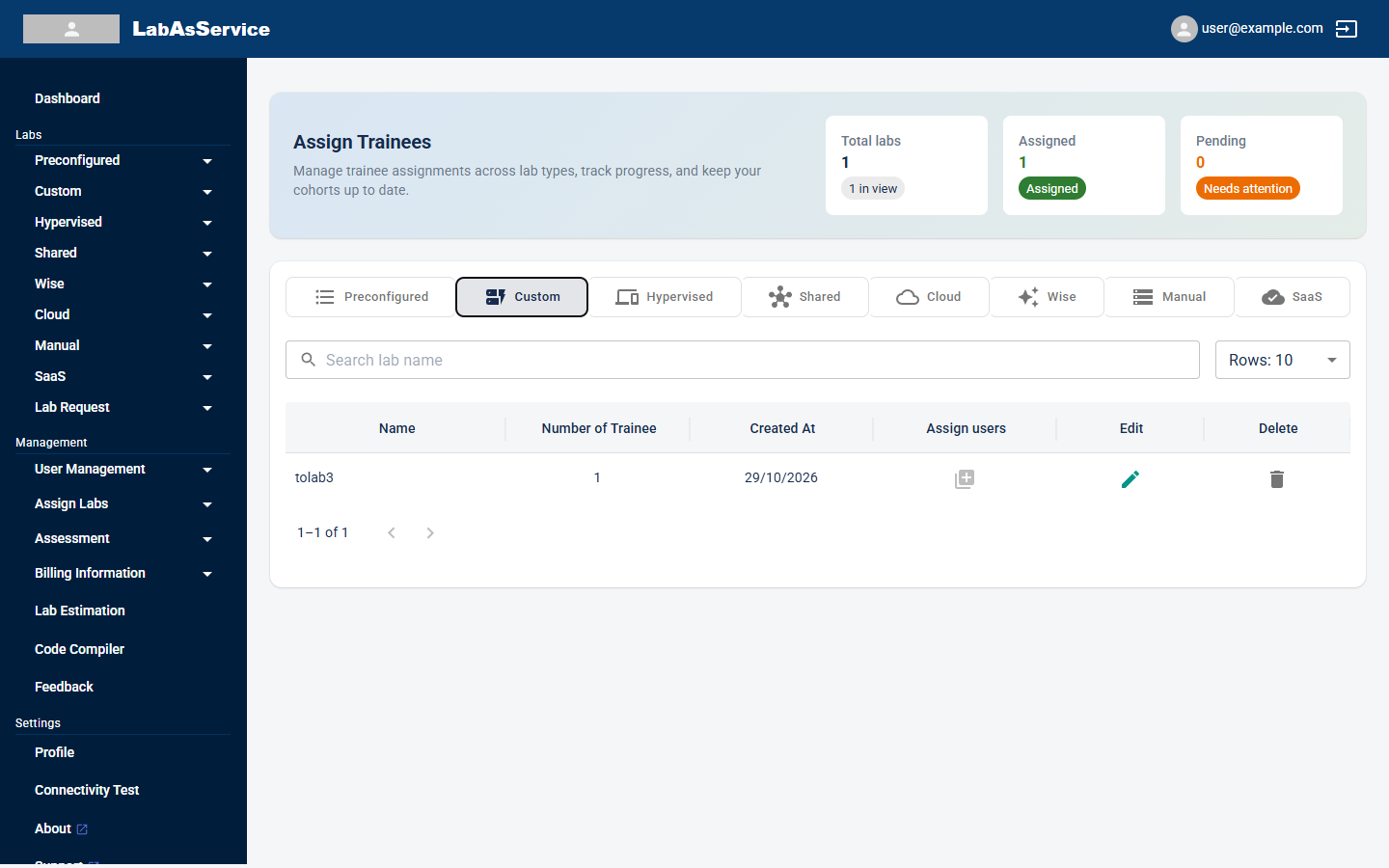
The summary cards at the top show Total labs, Assigned and Pending. The Pending card is marked Needs attention.
- Select the lab type tab: Preconfigured, Custom, Hypervised, Shared, Cloud, Wise, Manual or SaaS.
- Find the lab. Use Search lab name if the list is long, and Rows to change how many are shown.
- In the lab's row, select the Assign users icon to choose the trainees.
Each row shows the lab's Name, Number of Trainee and Created At, followed by Assign users, Edit and Delete icons. In this example the Assign users icon is greyed out, and the lab already shows one assigned trainee.
When a lab type has no labs, the page shows No data available.
¶ Assign trainers
Select Assign Labs > Assign Trainer.
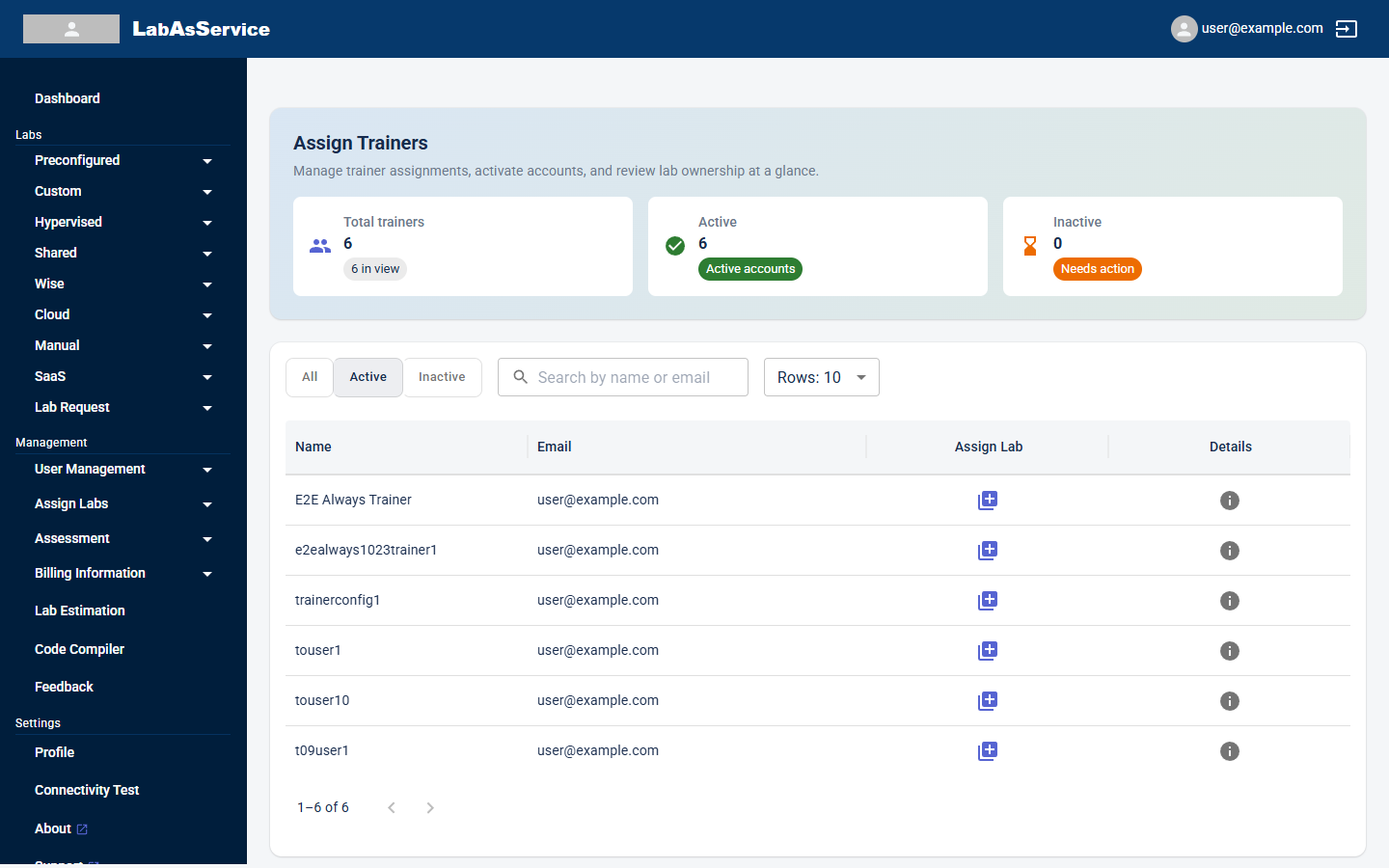
The summary cards show Total trainers, Active and Inactive. Use the All, Active and Inactive buttons to filter the list, and Search by name or email to find someone.
Each row shows the trainer's Name and Email, an Assign Lab icon and a Details icon.
¶ Giving a trainer access to labs
- In the trainer's row, select the Assign Lab icon. Its tooltip reads Assign or update labs.
- The Choose the lab from below list dialog opens. It has one drop-down for each lab type: Preconfigured, Custom, Wise, Hypervised, Shared, Cloud, Manual and SaaS.
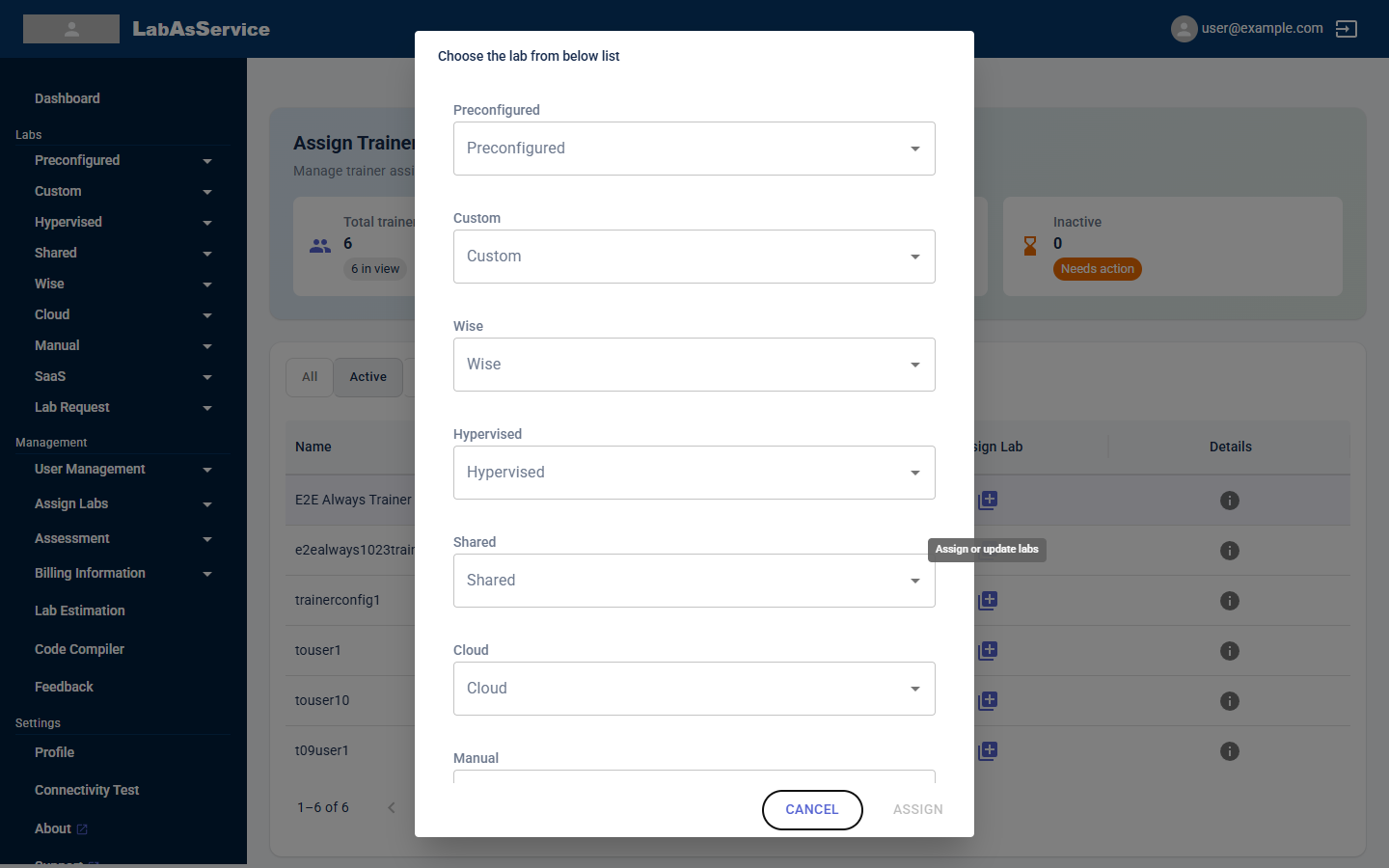
- Choose the labs the trainer should have in each type you need.
- Select ASSIGN. The button stays disabled until you have chosen something. Select CANCEL to close without changing anything.
To change a trainer's labs later, use the same icon. It both assigns and updates.
Trainers see assigned labs under Running Labs in their own sidebar. See Trainer: Running labs.