¶ Managing running labs
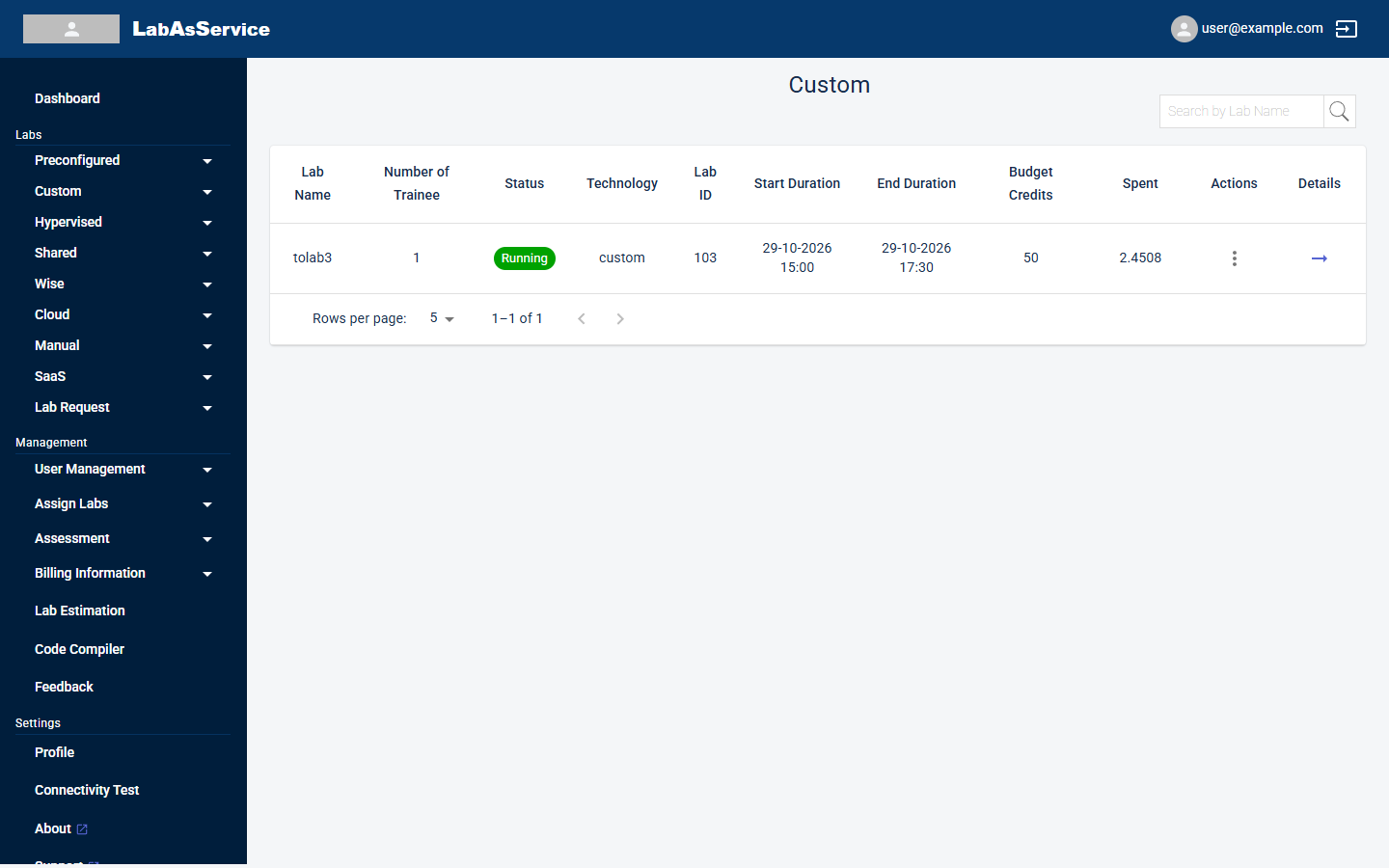
Each lab type has a Running Labs page under its menu in Labs, for example Custom > Running Labs. It lists every lab of that type and is where you monitor, stop, delete or clone them.
¶ The lab list
| Column | Meaning |
|---|---|
| Lab Name | The name given when the lab was created |
| Number of Trainee | How many trainees the lab was created for |
| Status | The state of the lab, for example Running |
| Technology | The lab type |
| Lab ID | The unique number of the lab |
| Start Duration and End Duration | When the lab is scheduled to start and end |
| Budget Credits | The credit budget set for the lab |
| Spent | Credits used so far |
| Actions | A three-dot menu of actions |
| Details | The arrow that opens the lab's details page |
Use Search by Lab Name to find a lab. Use Rows per page and the arrows at the bottom to move through longer lists.
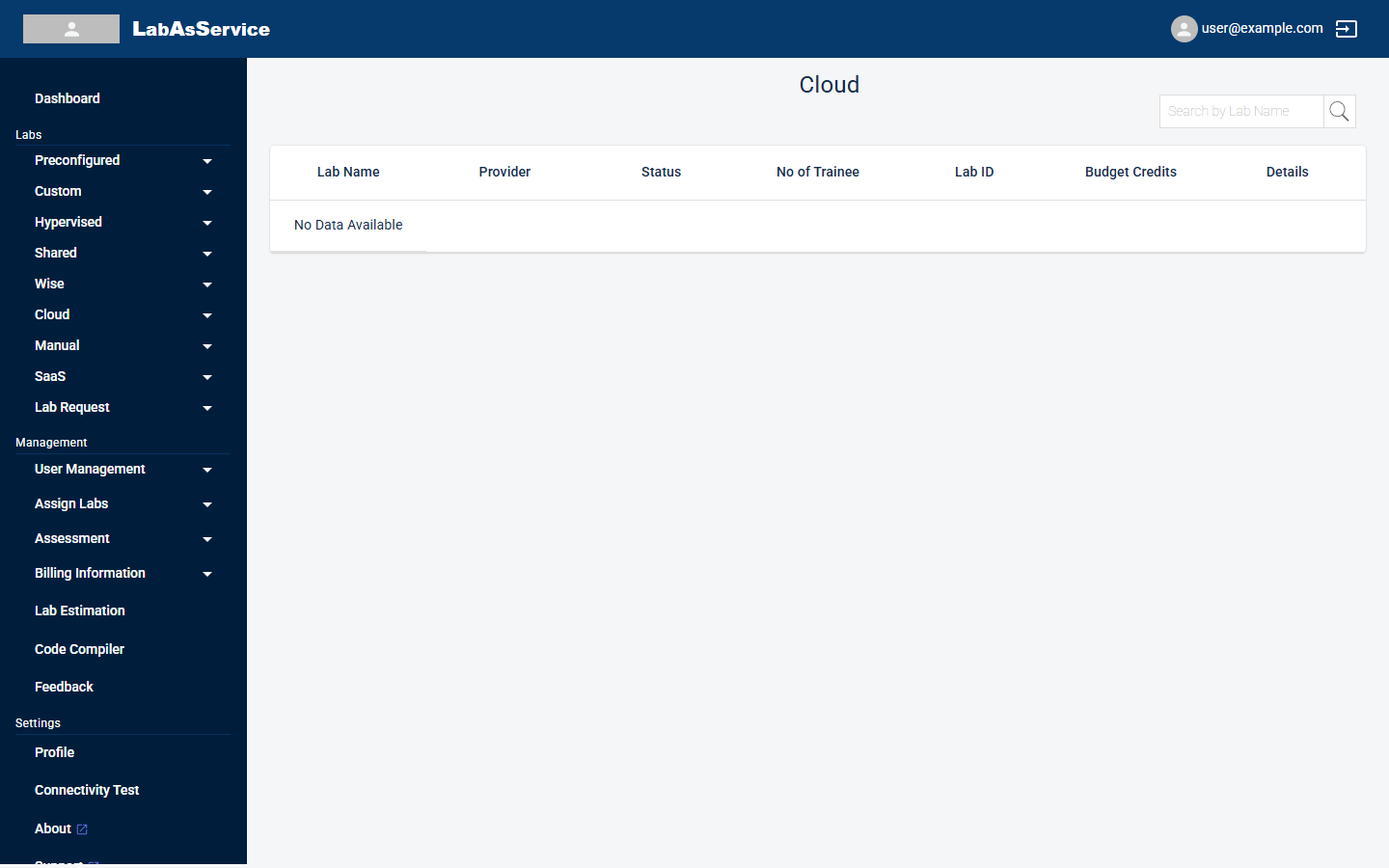
The columns differ slightly by type. Cloud labs show Lab Name, Provider, Status, No of Trainee, Lab ID, Budget Credits and Details. They have no start and end columns and no Actions menu. Manual and SaaS labs omit Technology, Budget Credits and Spent.
¶ Actions menu
Select the three dots in the Actions column.
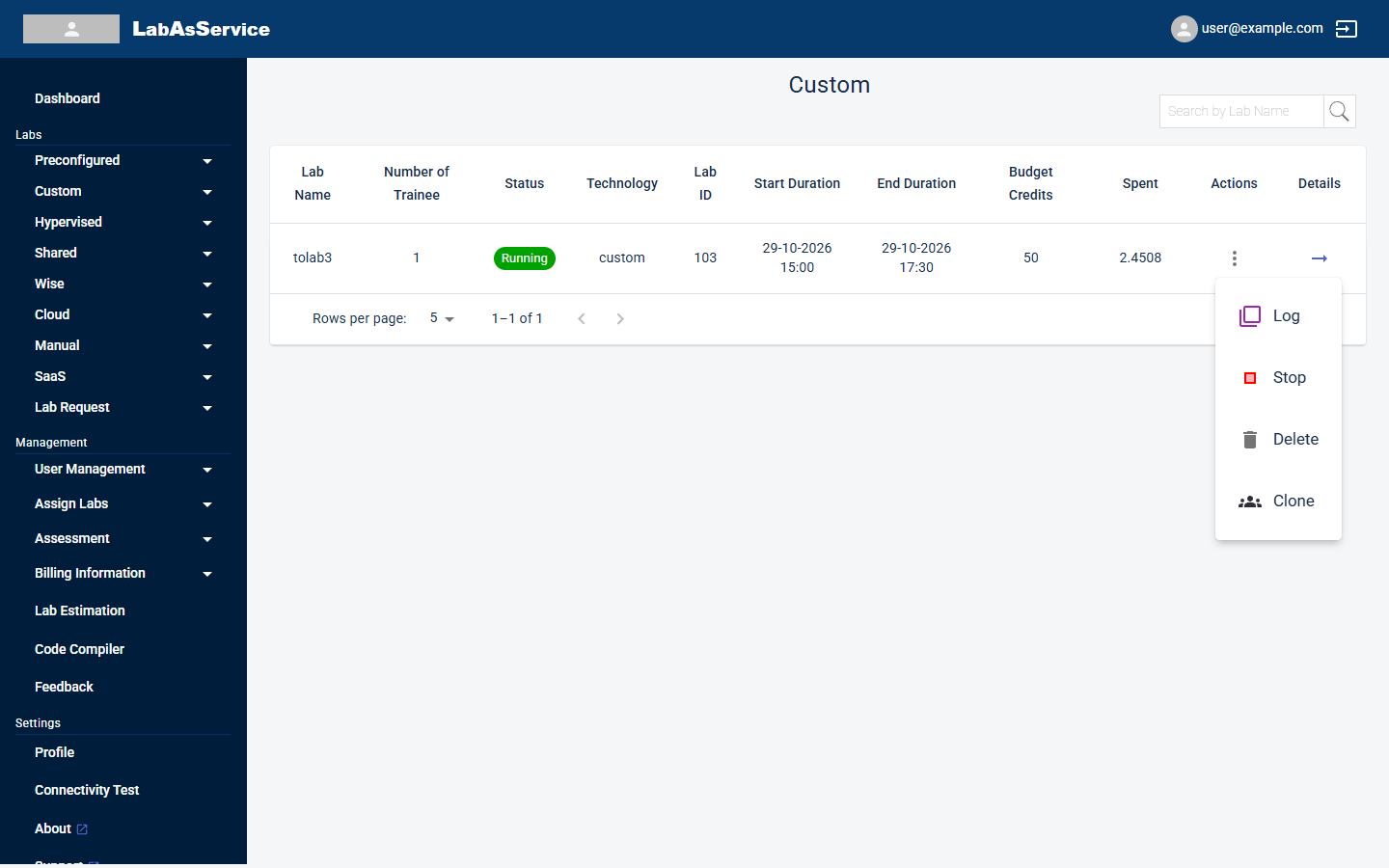
| Action | What it does |
|---|---|
| Log | Shows the activity log for the lab |
| Stop | Stops the lab |
| Delete | Deletes the lab |
| Clone | Creates a new lab based on this one |
Delete removes the lab. Check the lab name and its status before you confirm. Stopping a lab affects every trainee in it.
¶ Lab details
Select the arrow in Details to open the details page.
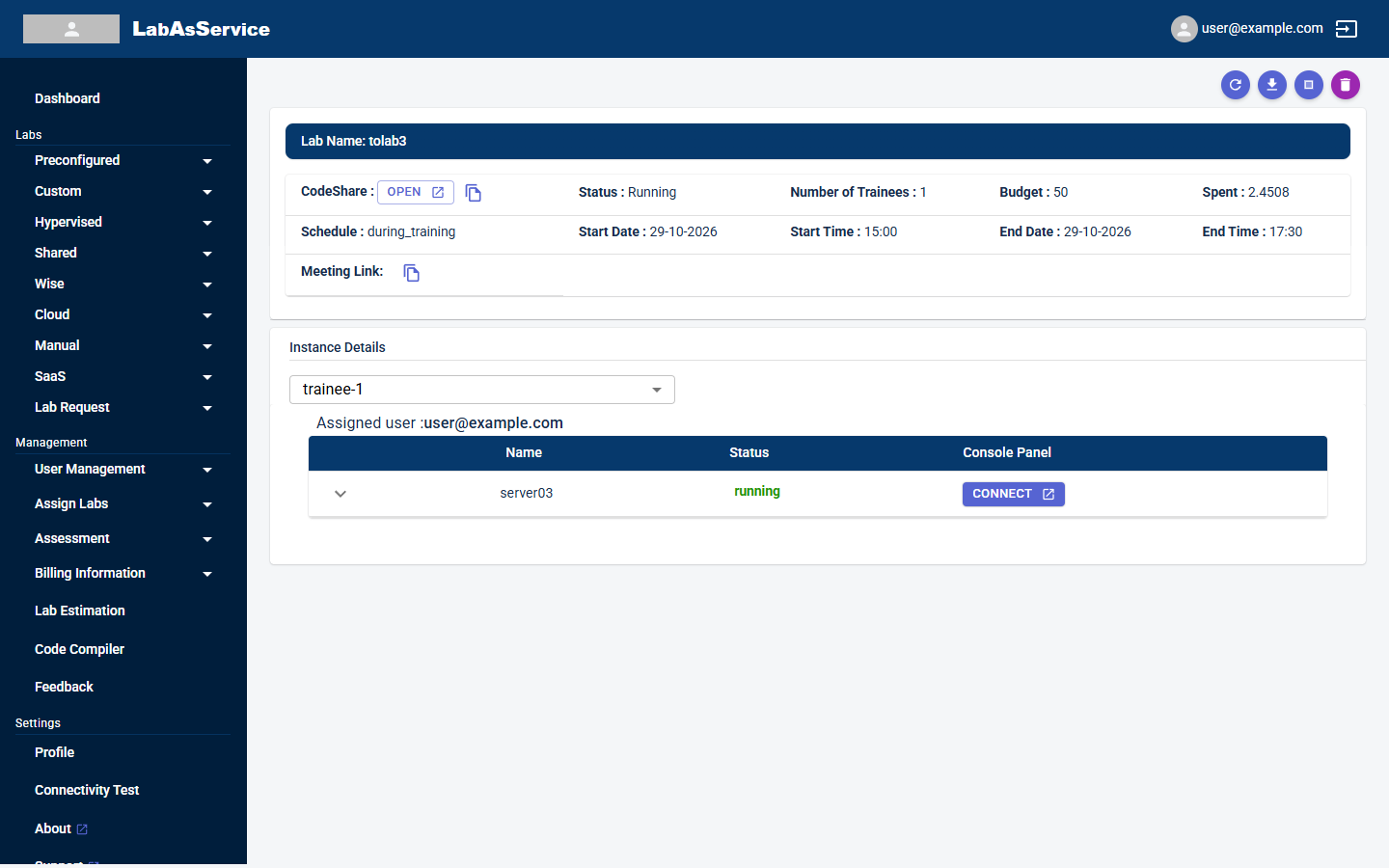
The page has the same layout as the trainer's lab details page. See Trainer: Running labs and trainee instances for a field-by-field description. In short:
- The summary shows the lab's CodeShare link, status, number of trainees, Budget and Spent, schedule and meeting link.
- The round buttons at the top right are refresh, download lab details, stop and delete.
- Under Instance Details, choose a trainee from the drop-down to see their servers and connect to them.
¶ Related pages
- To change who is in a lab: Assigning trainers and trainees
- To see when a lab will run: Schedules
- To see what a lab has cost: Billing