¶ Administrator dashboard
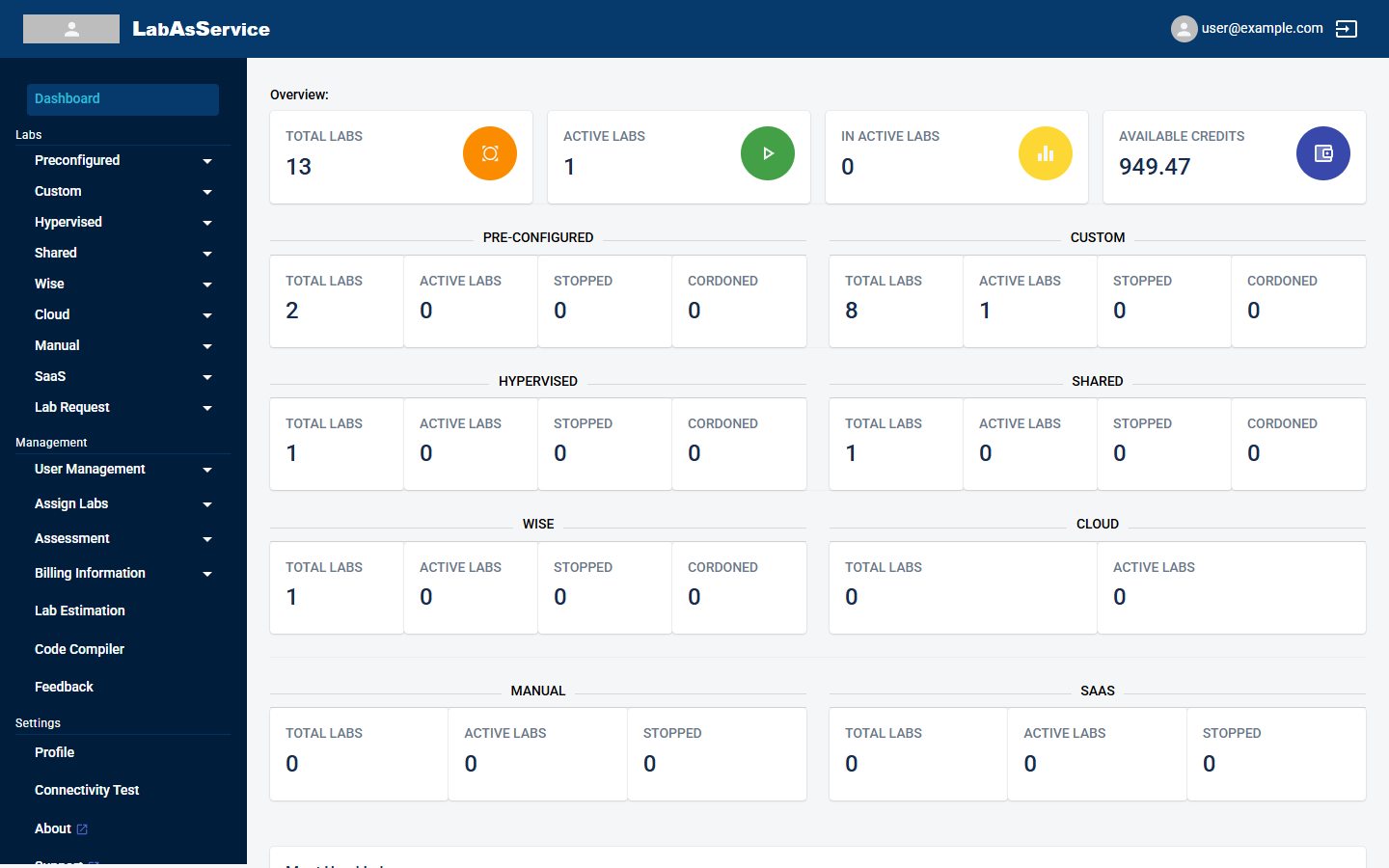
The Dashboard is the first page you see after signing in as an administrator. It summarises your organisation's labs and credits.
¶ Overview tiles
| Tile | Meaning |
|---|---|
| TOTAL LABS | Every lab in your organisation, across all types |
| ACTIVE LABS | Labs that are running now |
| IN ACTIVE LABS | Labs that are not running |
| AVAILABLE CREDITS | Credits you still have to spend on labs. See Billing |
¶ Tiles by lab type
Below the overview, each lab type has its own group of tiles.
| Lab type | Tiles shown |
|---|---|
| Pre-Configured, Custom, Hypervised, Shared, Wise | TOTAL LABS, ACTIVE LABS, STOPPED, CORDONED |
| Cloud | TOTAL LABS, ACTIVE LABS |
| Manual, SaaS | TOTAL LABS, ACTIVE LABS, STOPPED |
A cordoned lab has been frozen, for example because its budget was used up. See Creating a lab for how budgets work.
¶ Most Used Labs
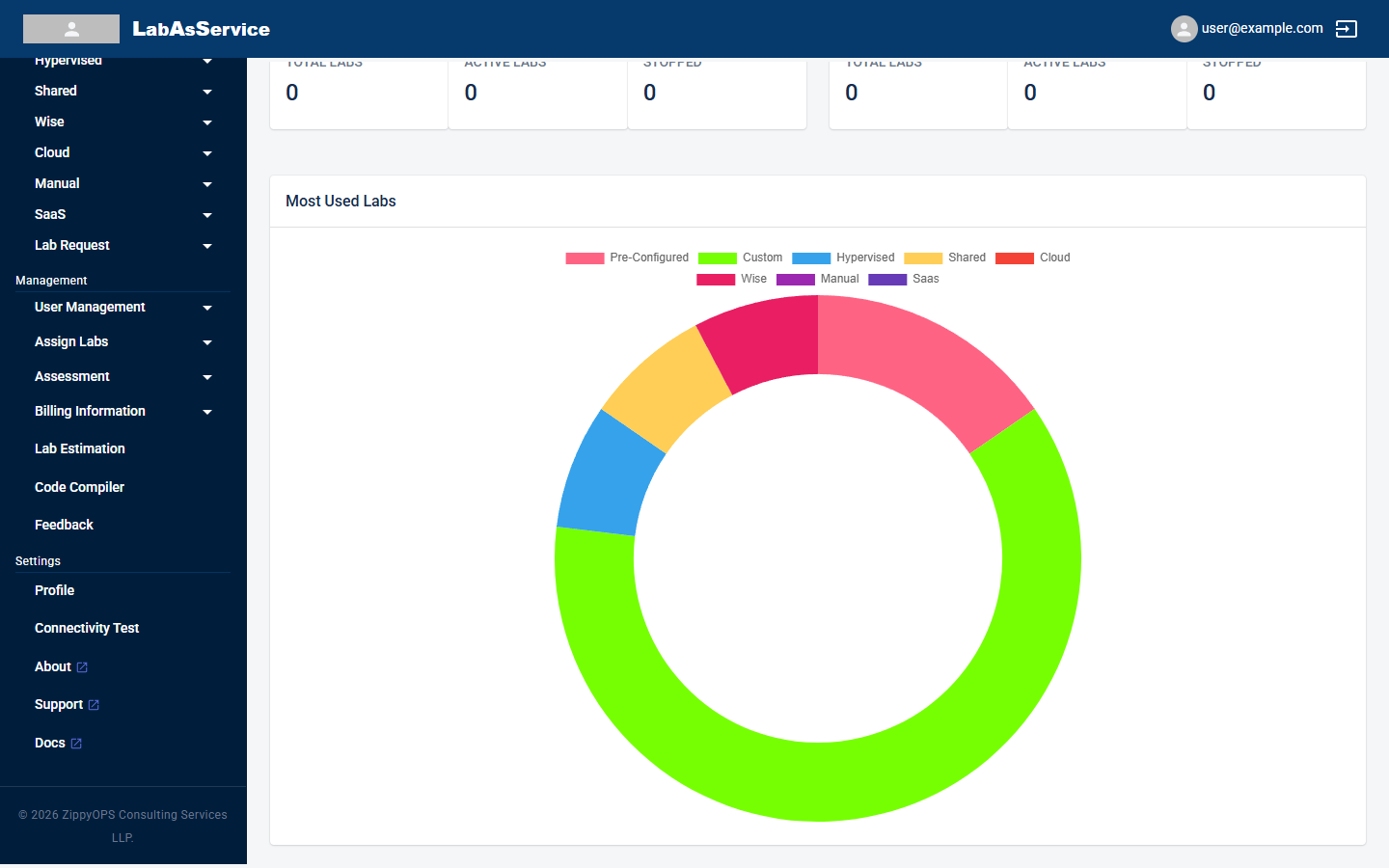
At the bottom of the page, the Most Used Labs chart shows how your usage is split across the lab types. Each type has its own colour, shown in the legend above the chart.
¶ The sidebar
The administrator sidebar has the following groups.
| Group | Contains |
|---|---|
| Labs | One menu for each lab type (Preconfigured, Custom, Hypervised, Shared, Wise, Cloud, Manual, SaaS), each with its Request, Running Labs and Schedule pages where they apply, plus Lab Request |
| Management | User Management, Assign Labs, Assessment and Billing Information |
| Other | Lab Estimation, Code Compiler, Feedback |
| Settings | Profile, Connectivity Test, About, Support and Docs |
Manual and SaaS labs only have a Running Labs page. They have no Request or Schedule page.