¶ Running labs and trainee instances
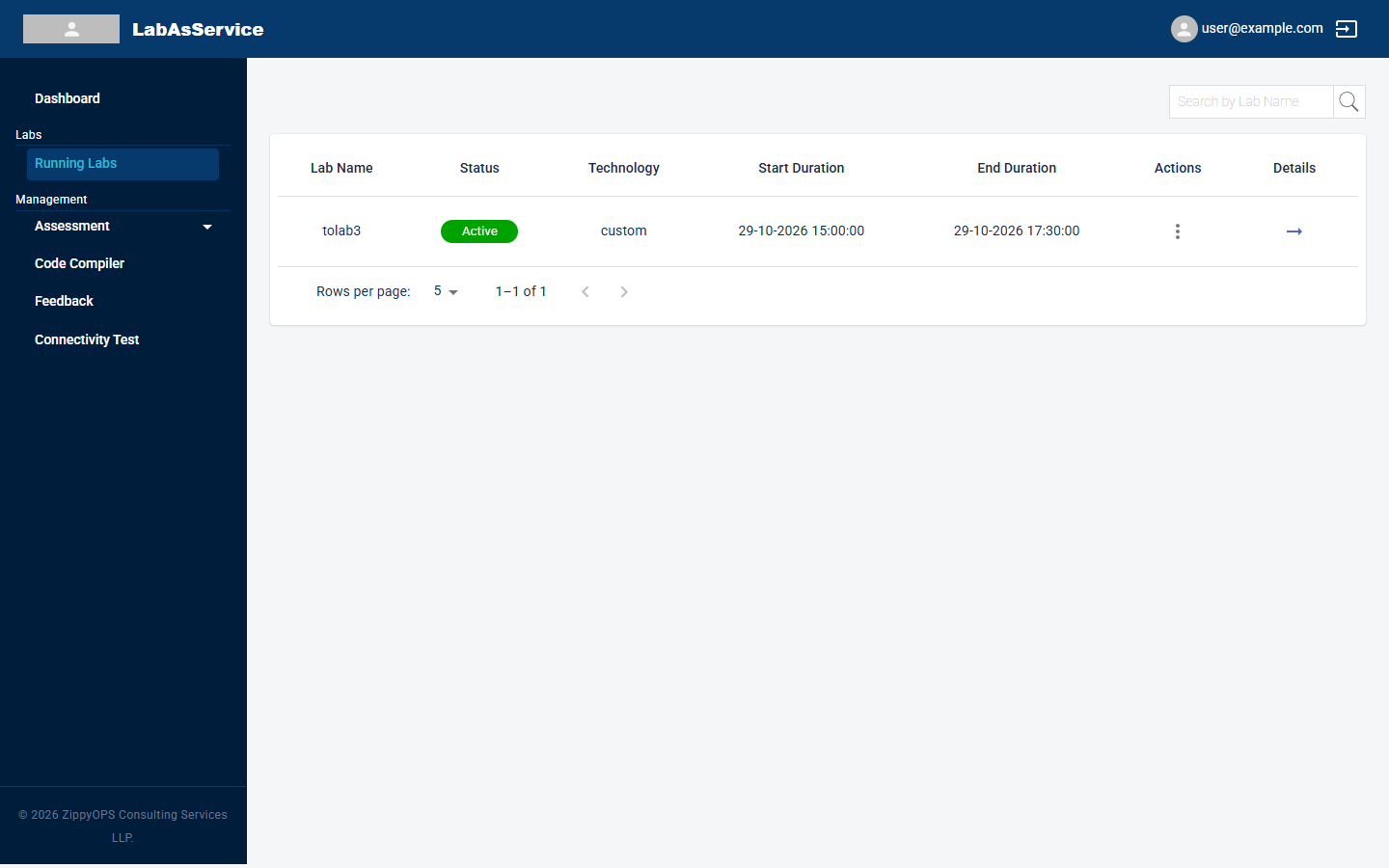
Select Running Labs in the sidebar to see every lab assigned to you.
¶ The lab list
| Column | Meaning |
|---|---|
| Lab Name | The name of the lab |
| Status | The current state, for example Active |
| Technology | The lab type, for example custom |
| Start Duration | The date and time the lab starts |
| End Duration | The date and time the lab ends |
| Actions | A three-dot menu with actions for the lab |
| Details | The arrow that opens the lab's details page |
Use Search by Lab Name to find a lab, and Rows per page with the arrows at the bottom to move through longer lists.
¶ Actions menu
Select the three dots in the Actions column to open the menu for a lab.
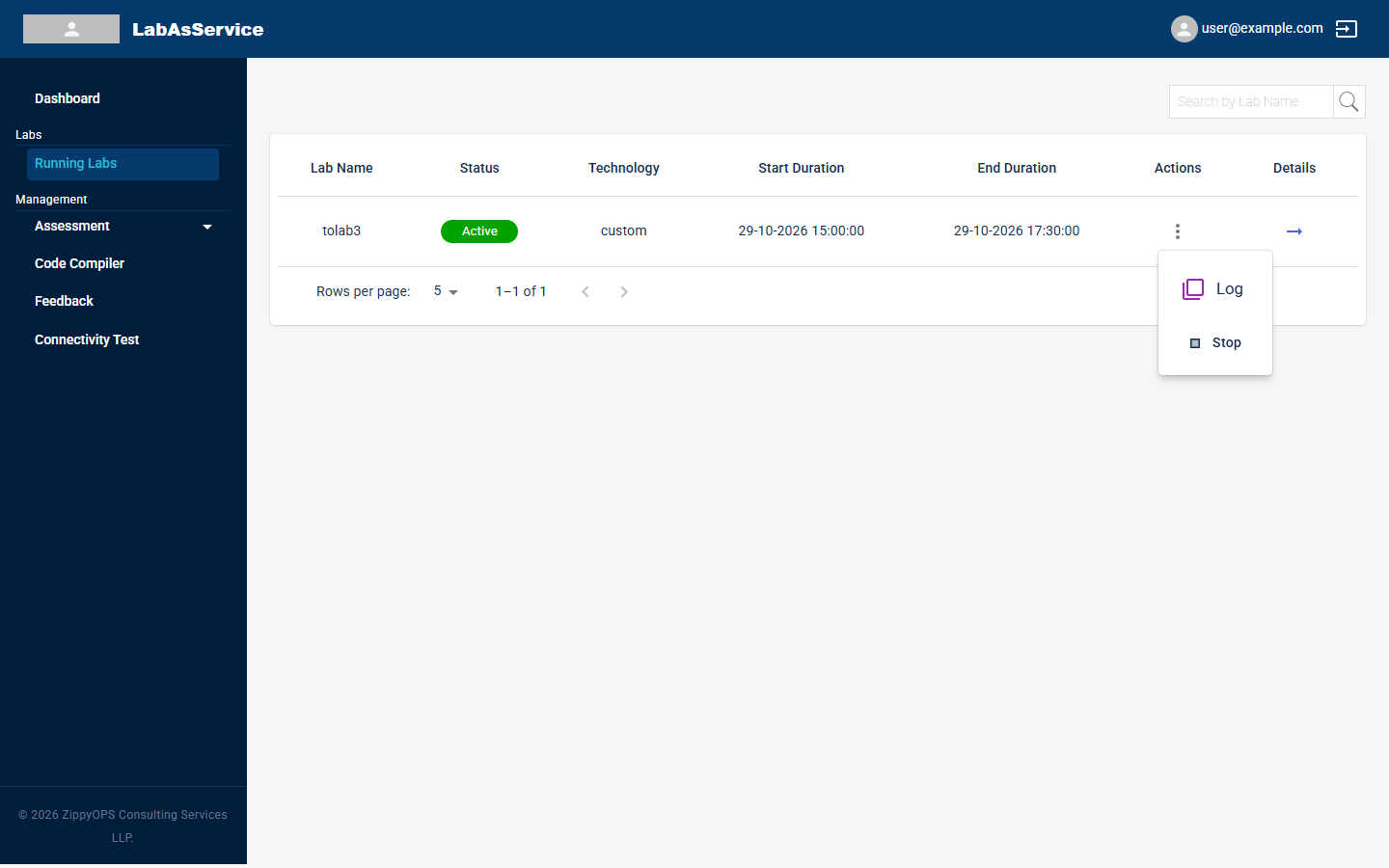
| Action | What it does |
|---|---|
| Log | Opens the log of activity for the lab |
| Stop | Stops the lab |
Stopping a lab affects every trainee in it. Only stop a lab when you are sure the session is over.
¶ Lab details
Select the arrow in the Details column to open the lab's details page.
¶ Lab summary
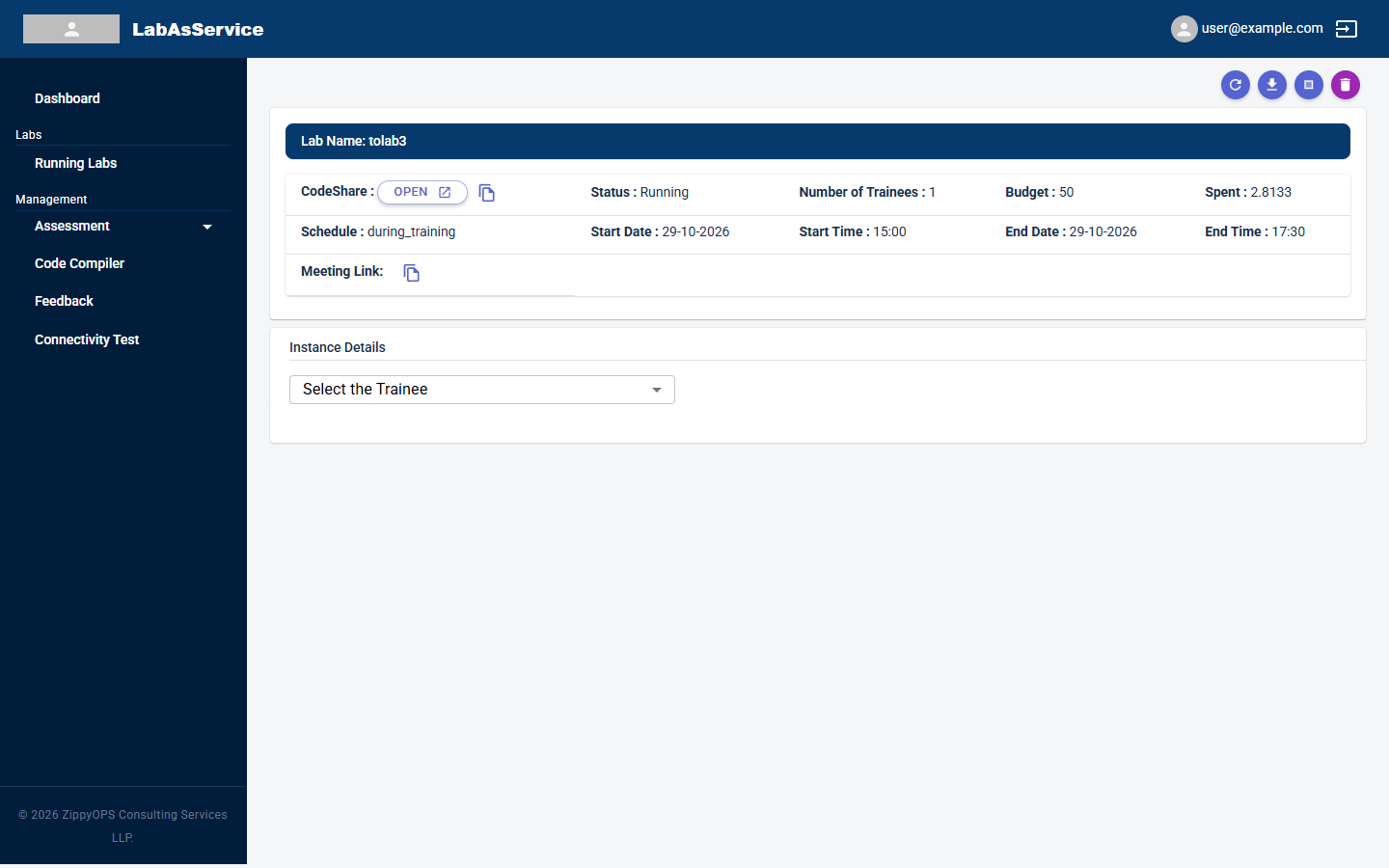
| Field | Meaning |
|---|---|
| CodeShare | The shared code-editing space for the lab. OPEN opens it and the copy icon copies its link |
| Status | Whether the lab is running |
| Number of Trainees | How many trainees are in the lab |
| Budget and Spent | The credits set aside for the lab and the credits used so far |
| Schedule | The schedule type: always, during_training or immediate |
| Start Date / Start Time, End Date / End Time | When the lab is scheduled to run |
| Meeting Link | The training-session link, with a copy icon |
The round buttons at the top right are, from left to right: refresh, download lab details, stop and delete.
¶ Looking up a trainee's server
Under Instance Details, choose a trainee from Select the Trainee. Their server list appears with each server's Name, Status and a CONNECT button.
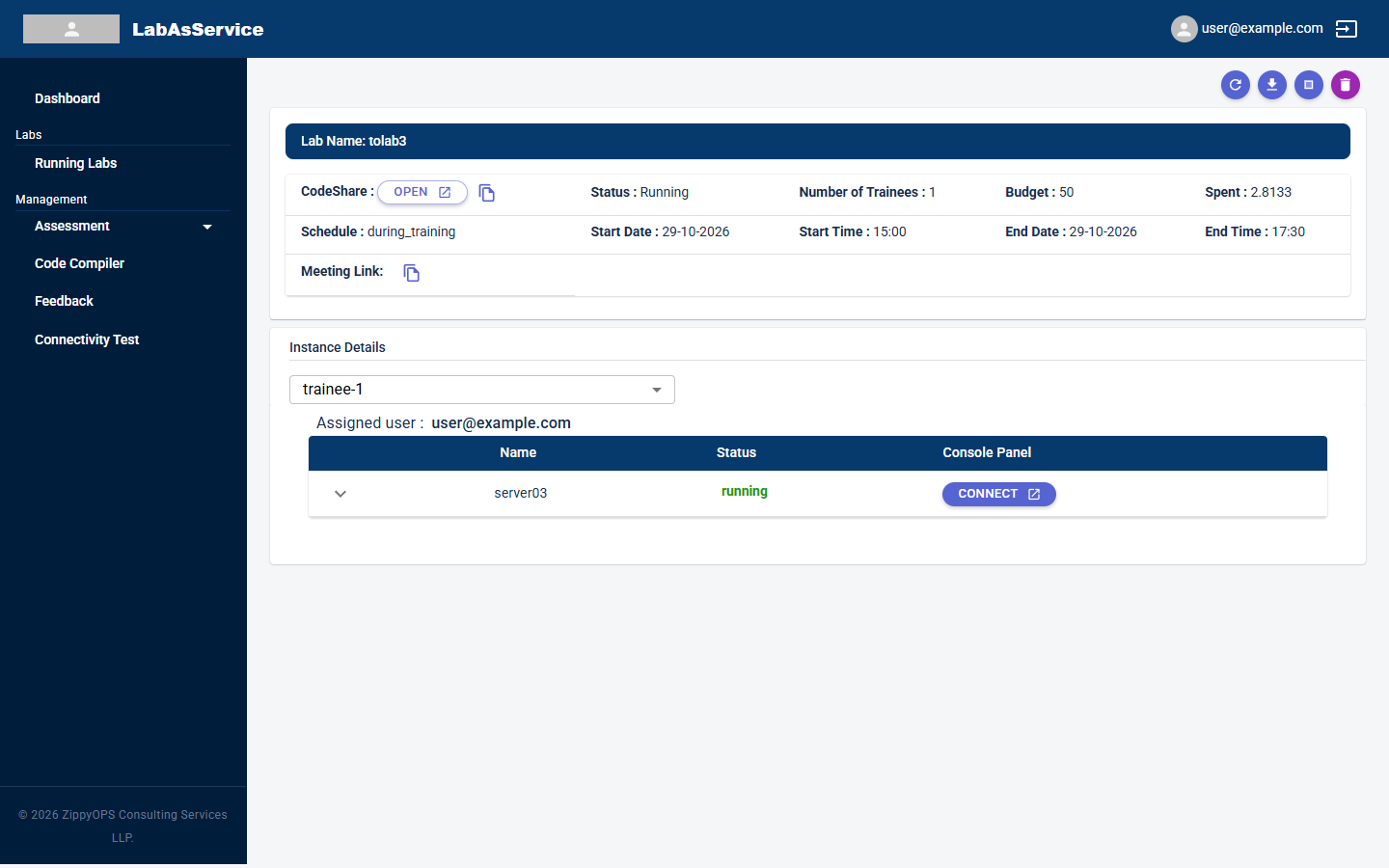
Select the arrow at the left of a server row to expand it. It shows the same connection details a trainee sees, such as addresses, username, operating system, ports and size, together with the STOP and LOG buttons for that server. See Connecting to your lab for what each field means.
Use this view to help a trainee who is stuck, for example to confirm their server is running, or to check their connection details.
¶ Start and stop availability
The start and stop controls follow the lab's schedule: immediate, always or during_training. For labs that run only during training hours, controls are disabled outside those hours unless Manage Labs was turned on for the lab. The rules are described in Connecting to your lab.
¶ Other things trainers do
- Create assessments and assign them to labs: Assessments
- Review trainee feedback: Feedback