¶ User management
User Management in the sidebar has four pages: Overview, Users, Groups and Bulk User creation.
¶ Groups
Every user belongs to one group. The group decides which menu a user sees and what they can do.
| Group | What the group can do |
|---|---|
| Admin | Has complete access to the application and can perform every operation. Sees the full administrator sidebar described in this guide |
| OPS | Can start and stop labs |
| Read-Only | Has complete read-only access to the application |
| Trainer | Can connect to any individual trainee's lab, and can start and stop a complete lab assigned to them. See the trainer guide |
| Trainee | Can connect to a lab and start and stop their own assigned lab. See the trainee guide |
¶ Overview
Select User Management > Overview for a count of your organisation's users.
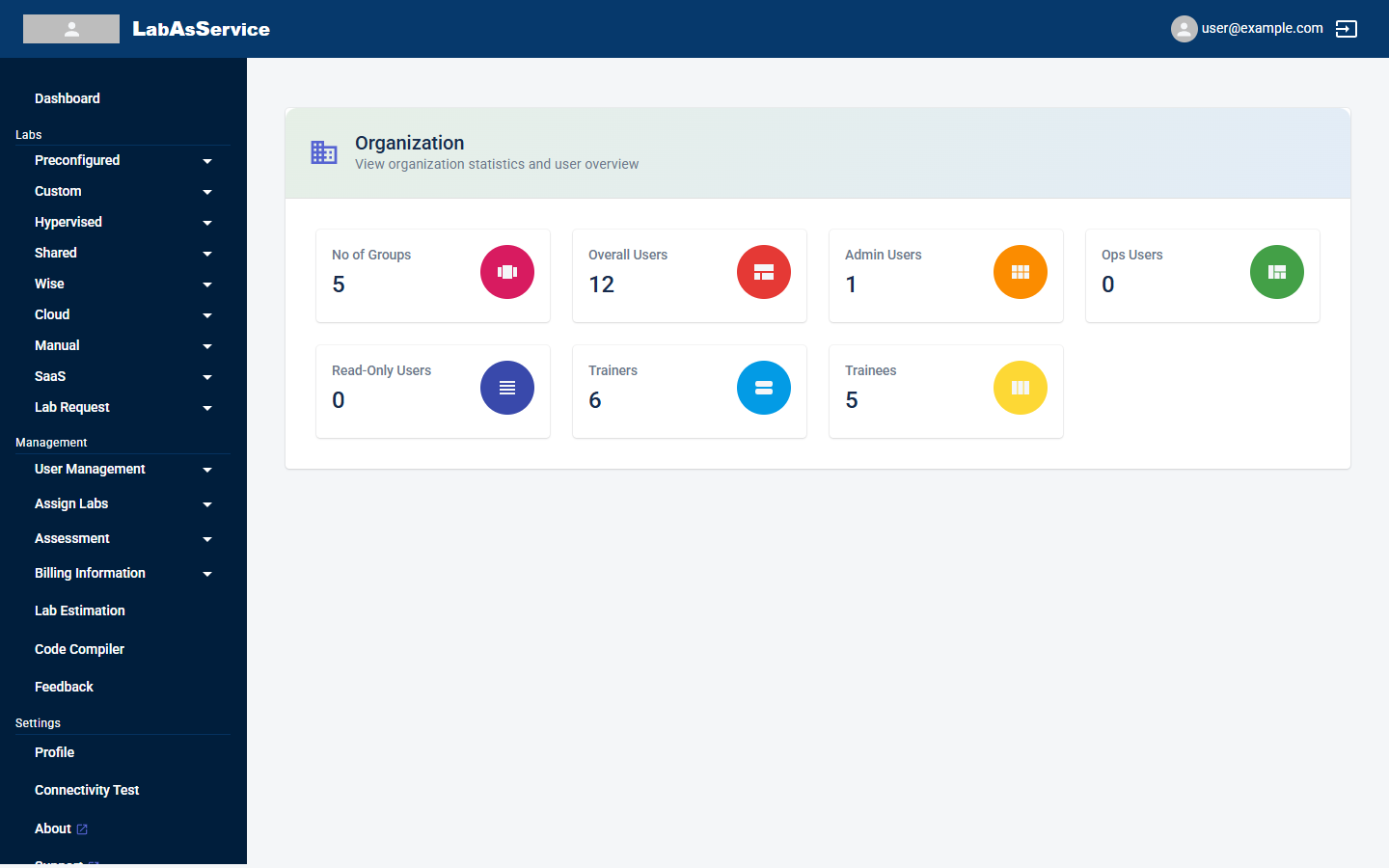
The tiles show No of Groups, Overall Users, Admin Users, Ops Users, Read-Only Users, Trainers and Trainees.
¶ Users
Select User Management > Users to manage individual accounts.
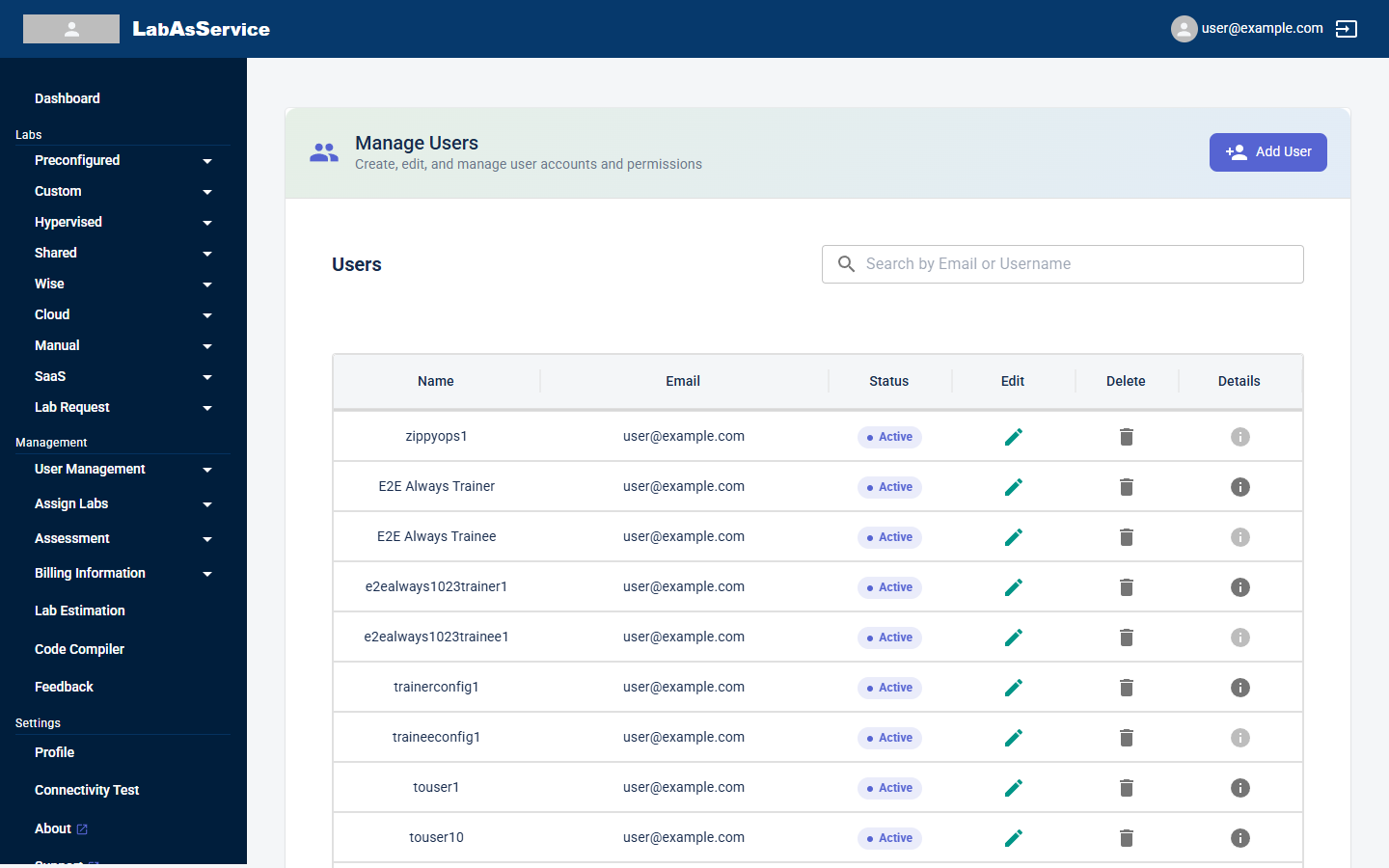
The list shows each user's Name, Email and Status. The icons at the end of each row are:
| Icon | Action |
|---|---|
| Pencil (Edit) | Edit the user |
| Bin (Delete) | Delete the user |
| i (Details) | See the user's details. It is greyed out on some rows |
Use Search by Email or Username to find someone.
¶ Adding a user
- Select Add User.
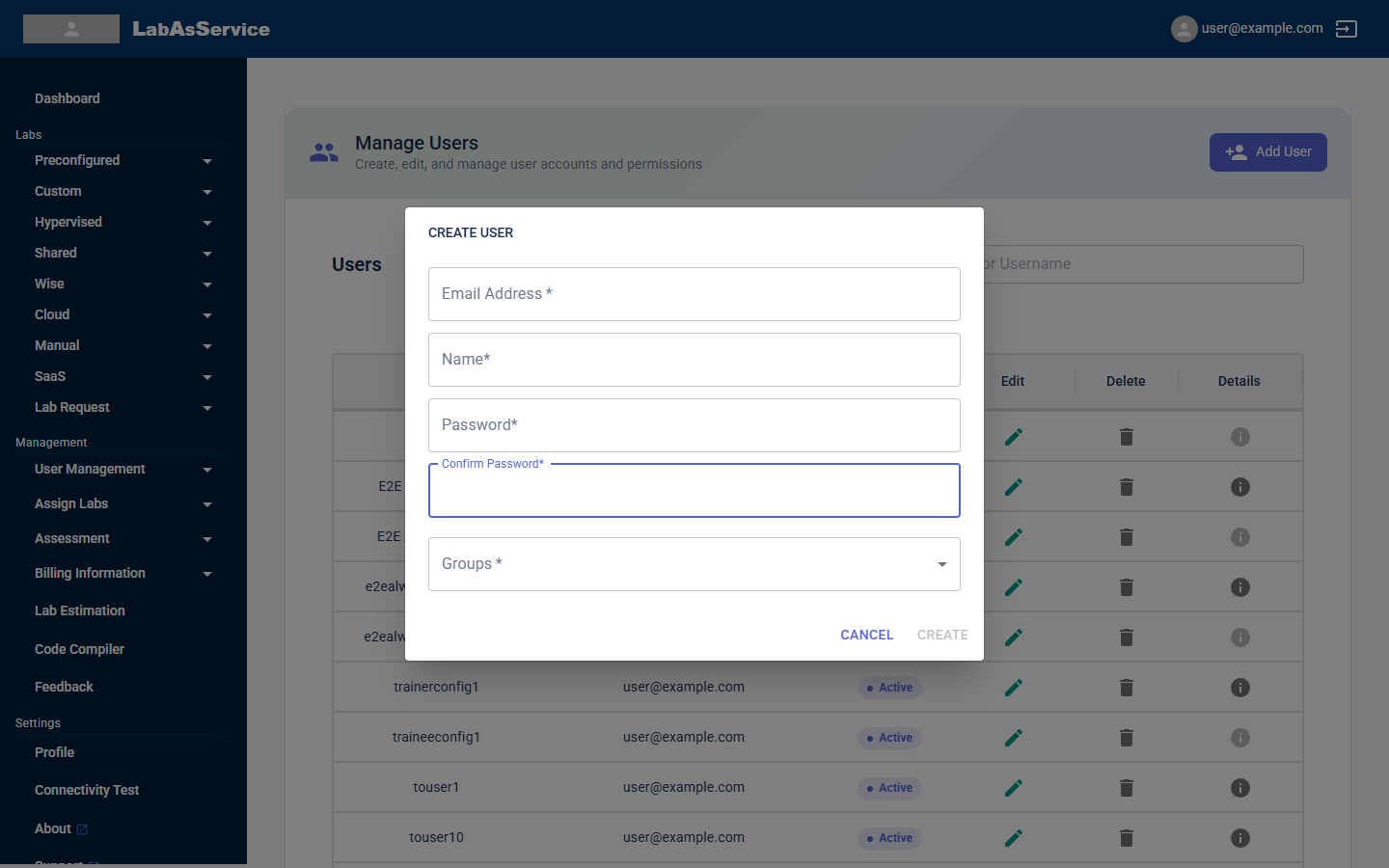
- Fill in Email Address, Name, Password and Confirm Password. All are required.
- Choose the Groups value: Admin, Read-Only, OPS, Trainer or Trainee.
- Select CREATE. The button stays disabled until the form is complete and valid. Select CANCEL to close the dialog without creating anyone.
¶ Groups page
Select User Management > Groups to see users by group.
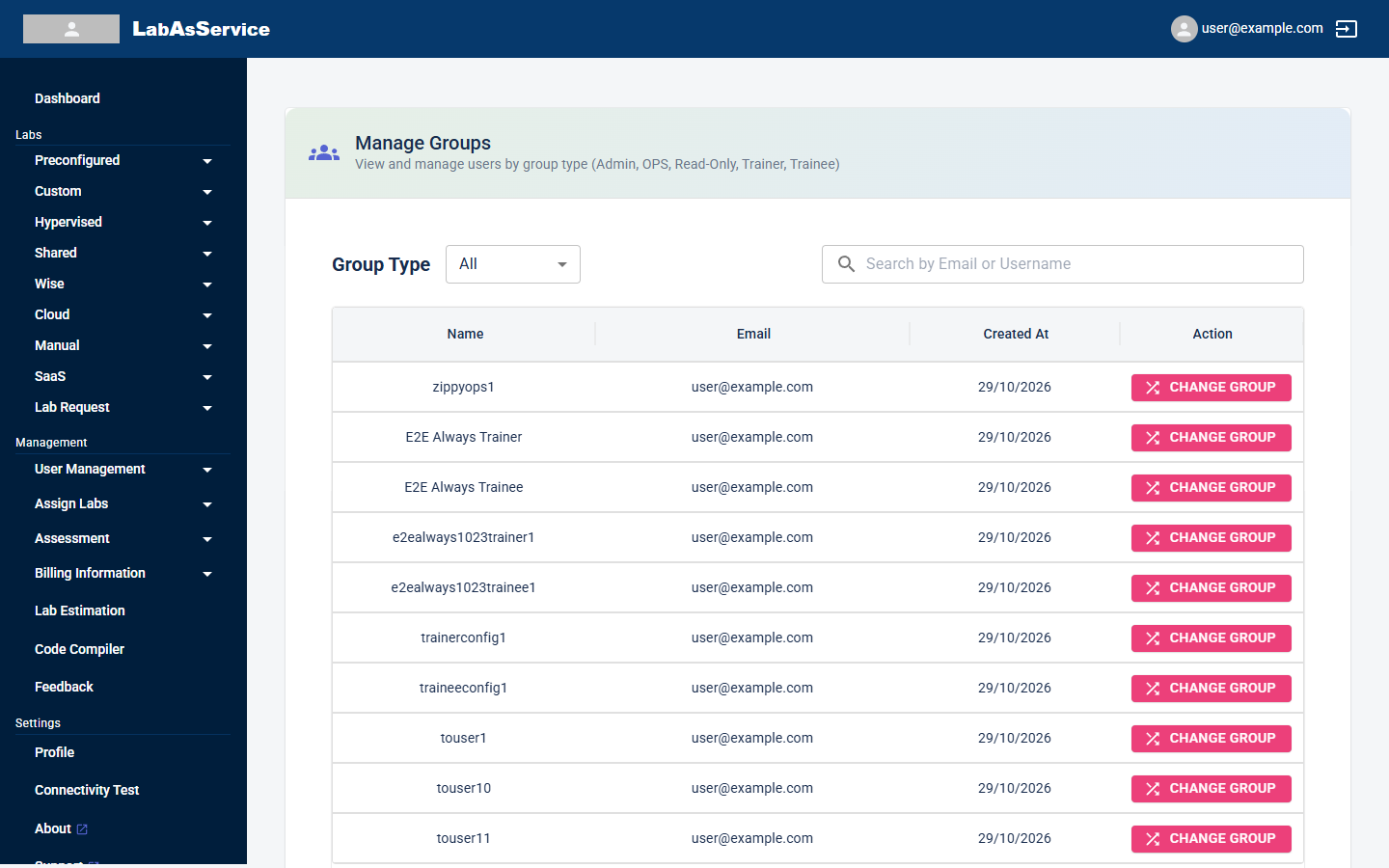
- Use Group Type to show All users, or one group at a time.
- Each row shows Name, Email and Created At.
- Select CHANGE GROUP on a row to move that user to a different group.
- Use Search by Email or Username to find someone.
¶ Adding many users at once
Select User Management > Bulk User creation to add or change many users from one file.
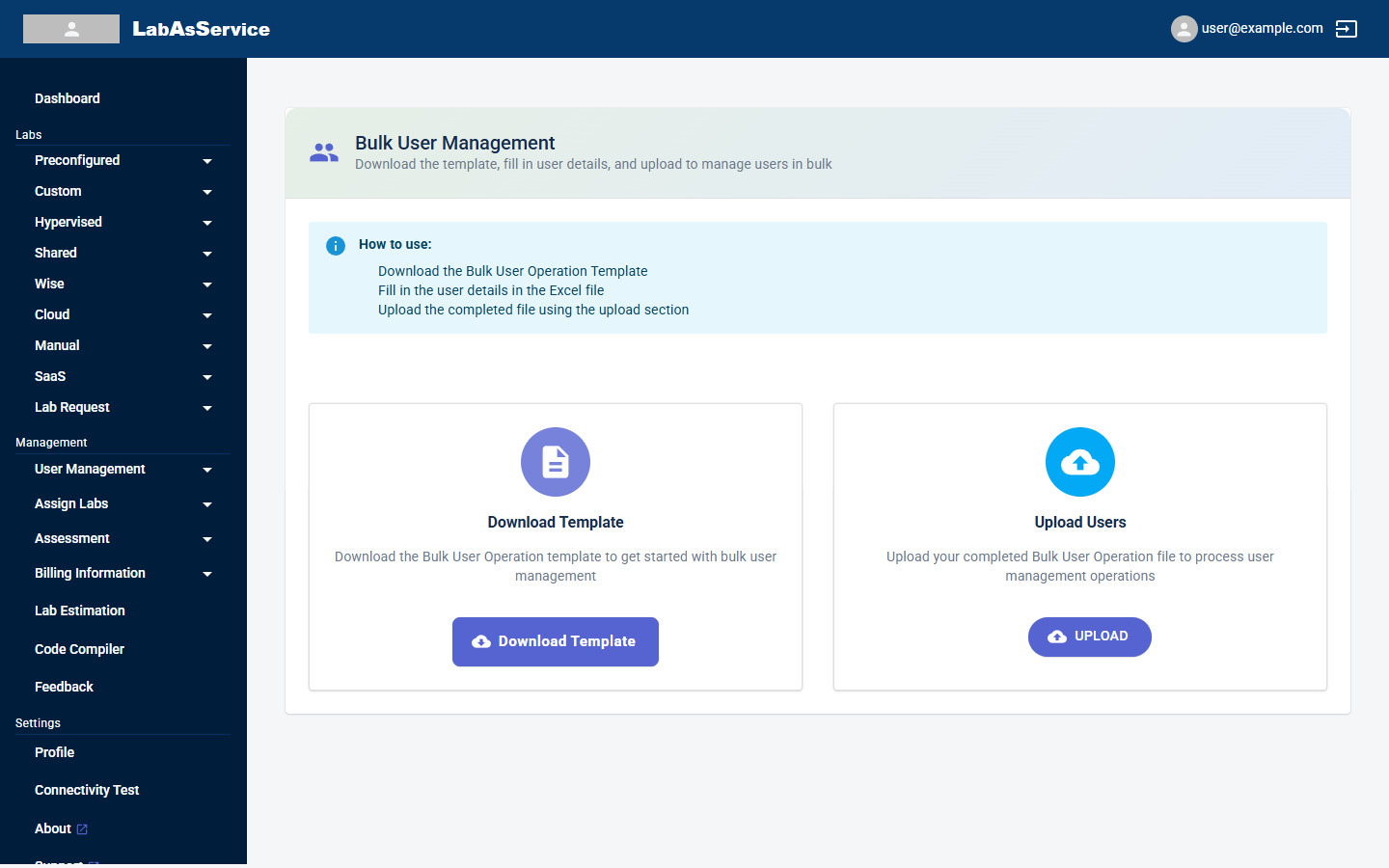
- Select Download Template to download the Bulk User Operation template.
- Fill in the user details in the Excel file.
- Select UPLOAD and choose your completed file.
¶ After you add users
Users cannot do anything with labs until they are assigned to them. See Assigning trainers and trainees.