¶ Add User
Adding a new user to LabAsService takes a few seconds. You provide the user's email, name and password, and choose their group.
¶ Add a user
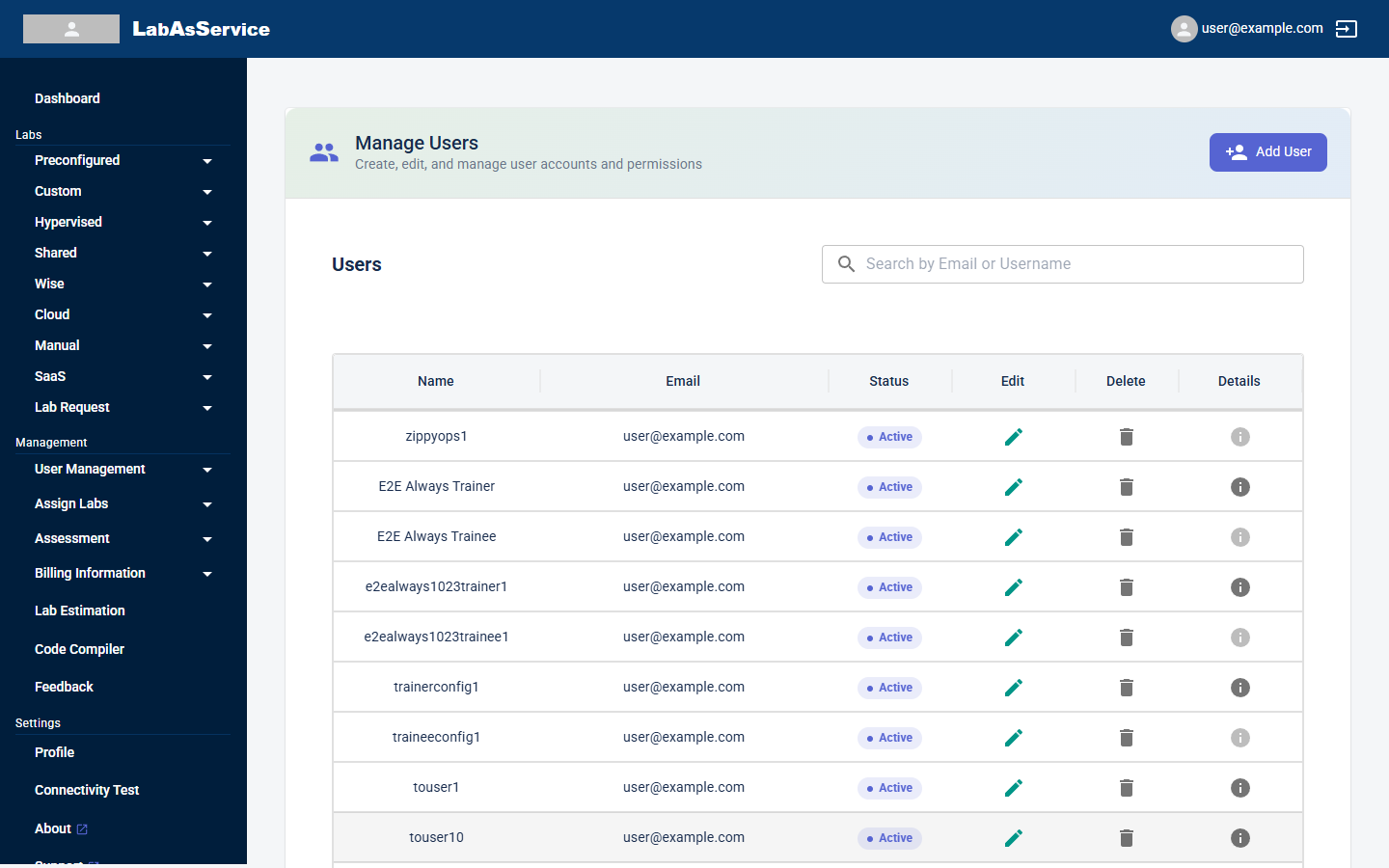
- Select User Management > Users.
- Select Add User at the top right of the page.
- In the CREATE USER dialog, fill in the details.
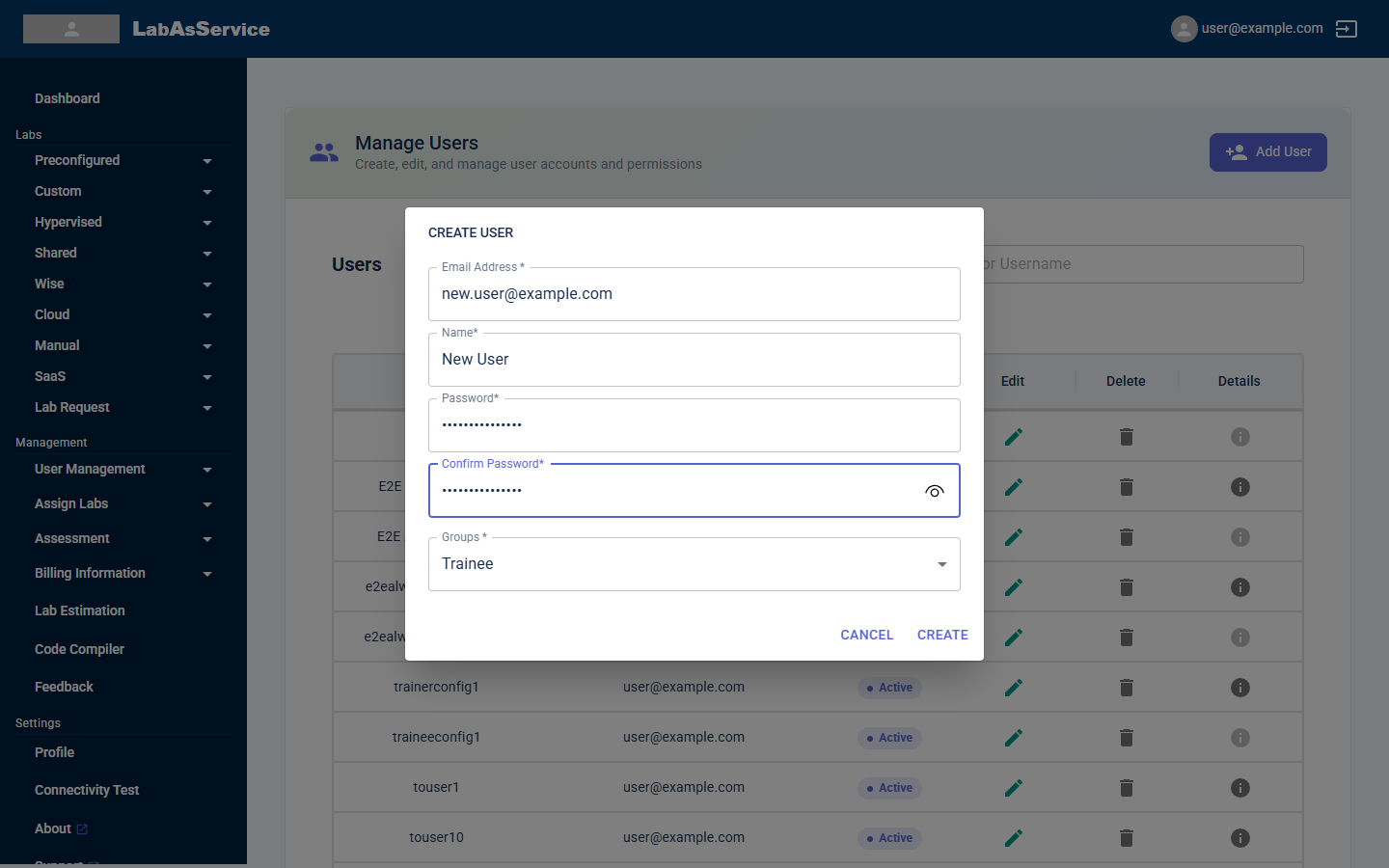
| Field | Notes |
|---|---|
| Email Address | A valid email address. It is used to sign in and for notifications |
| Name | The user's full name |
| Password | A complex password that the user will sign in with |
| Confirm Password | The same password again |
| Groups | The user's group: Admin, Read-Only, OPS, Trainer or Trainee |
- Select CREATE. The button stays disabled until the form is complete and valid. Select CANCEL to close the dialog without creating anyone.
The new user then appears in the list on the Users page.
¶ Choosing a group
The group decides what a user can do:
| Group | What the group can do |
|---|---|
| Admin | Has complete access to the application and can perform every operation |
| OPS | Can start and stop labs |
| Read-Only | Has complete read-only access to the application |
| Trainer | Can connect to any individual trainee's lab, and can start and stop a complete lab assigned to them |
| Trainee | Can connect to a lab and start and stop their own assigned lab |
To move a user to a different group later, see Switch User Group.
¶ Adding many users
To add many users at once, use User Management > Bulk User creation. See User management.
¶ After you add users
A user can only use a lab after you assign them to it. See Assigning trainers and trainees.