¶ Connecting to your lab
Open a lab from Running labs by selecting the arrow in its Details column.
¶ Step 1: Read the rules and the feedback reminder
When the details page opens you may see one or two dialogs on top of it.
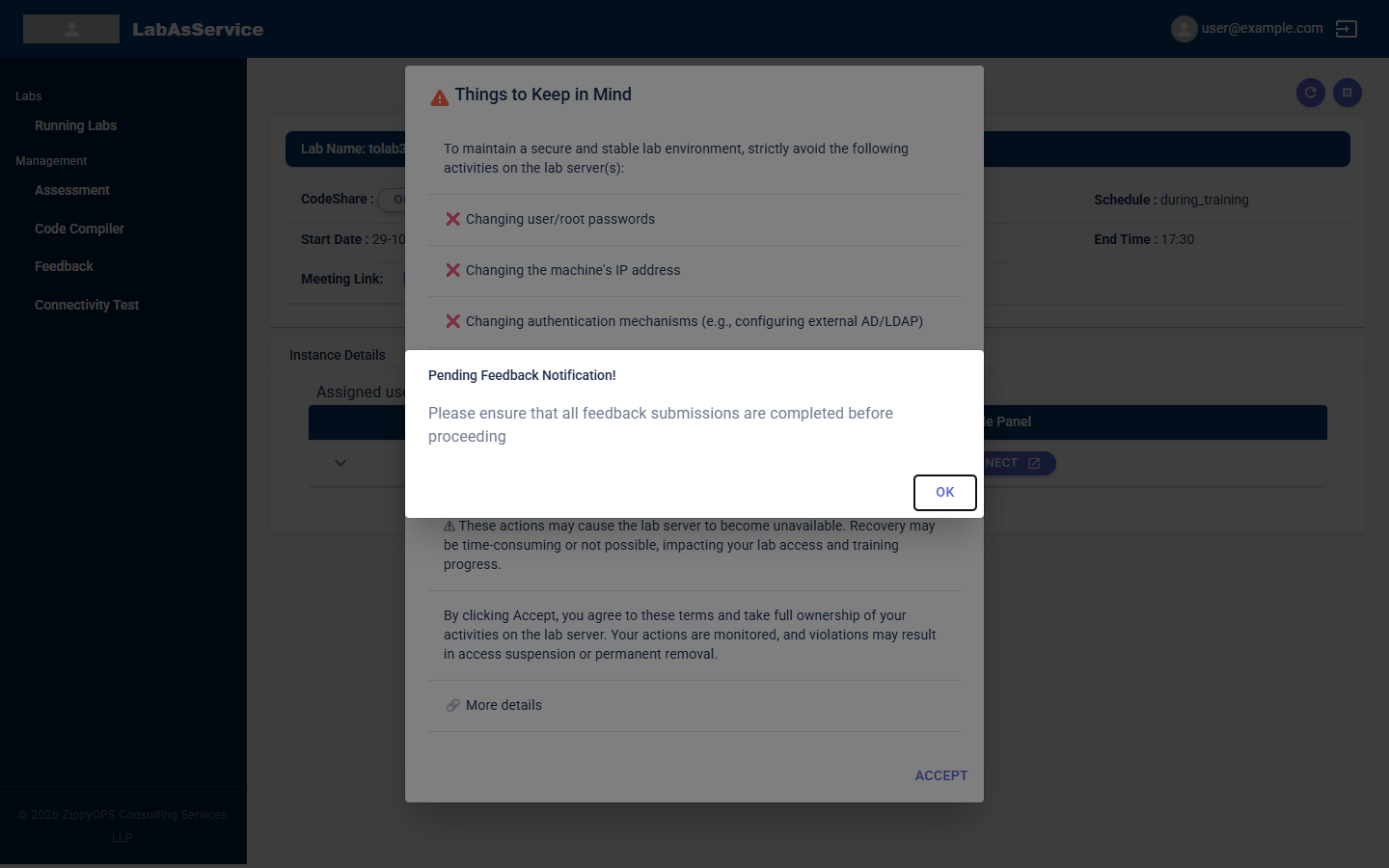
Things to Keep in Mind lists what you must not do on the lab servers. Read it before you continue. In summary, do not:
- change user or root passwords
- change the machine's IP address
- change authentication mechanisms (for example, configuring external AD/LDAP)
- delete or modify operating-system or system files
- scan, sniff or tamper with the network
- use the lab for any illegal or unauthorised activity
These actions can make the lab server unavailable, and recovery may be slow or impossible. By selecting ACCEPT you agree to these terms and take responsibility for your activity on the server. Your actions are monitored, and violations can lead to access suspension or permanent removal.
Pending Feedback Notification! appears when you still have feedback to submit. Select OK, and complete it from the Feedback page.
¶ Step 2: Read the lab summary
After you accept, the top of the page summarises the lab.
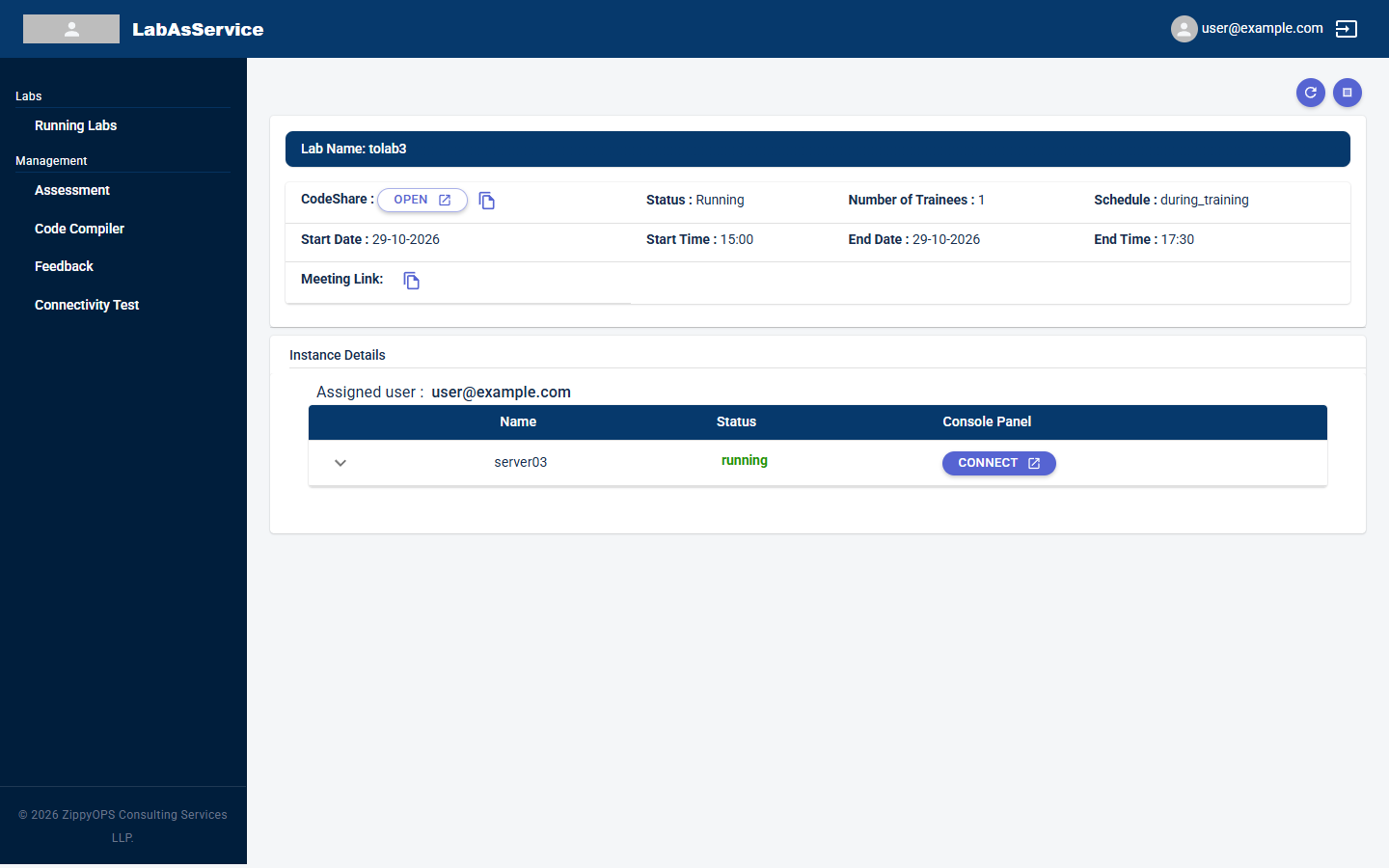
| Field | Meaning |
|---|---|
| Lab Name | The name of the lab |
| CodeShare | A shared code-editing space for the lab. Select OPEN to open it, or the copy icon to copy its link |
| Status | Whether the lab is currently running |
| Number of Trainees | How many trainees are in the lab |
| Schedule | The schedule type: always, during_training or immediate (see When you can start and stop the lab) |
| Start Date / Start Time and End Date / End Time | When the lab is scheduled to run |
| Meeting Link | The link to the training session, if your trainer provided one. Use the copy icon to copy it |
Two round buttons at the top right let you refresh the page and stop the lab.
¶ Step 3: Find your server and connect
Under Instance Details you see the servers assigned to you, with their Name, Status and Console Panel.
Select CONNECT to open the server's console.
¶ Connection details
Select the arrow at the left of a server row to expand it and see everything you need to connect another way, such as with SSH or remote desktop.
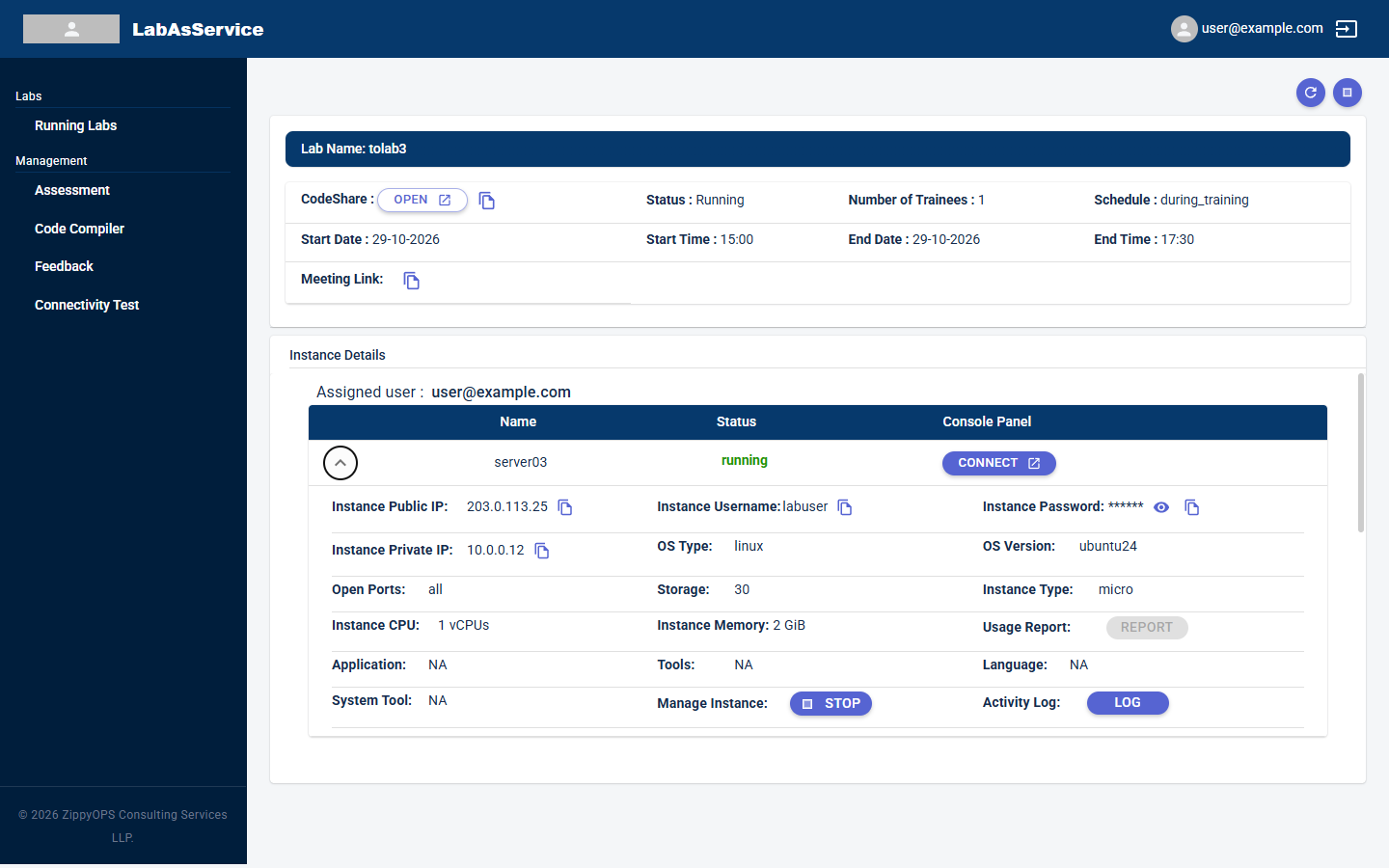
| Field | Meaning |
|---|---|
| Instance Public IP / Instance Private IP | The server's addresses. Use the copy icon beside each to copy it |
| Instance Username | The account to sign in with |
| Instance Password | Hidden by default. Select the eye icon to show it, and the copy icon to copy it |
| OS Type / OS Version | The operating system, for example Linux Ubuntu 24 |
| Open Ports | The ports that are open on the server |
| Storage, Instance Type, Instance CPU, Instance Memory | The size of the server |
| Application, Tools, Language, System Tool | Software installed for the lab |
| Usage Report | A REPORT button, available when a usage report can be generated |
| Manage Instance | The STOP button for this server |
| Activity Log | The LOG button, which shows activity on this server |
The addresses and passwords in screenshots on this page are examples only.
¶ When you can start and stop the lab
The start and stop controls are only available at certain times. They use the time on your own device, converted from the lab's schedule, so the times you see already match your local time zone.
| Schedule type | When you can start and stop |
|---|---|
| immediate | From when the lab is created until its end date and time |
| always | Continuously between the start and end date and time |
| during_training | Only inside the daily training hours, on the days the lab is scheduled. Outside those hours the controls are disabled, unless your trainer has enabled Manage Labs to let trainees start and stop beyond training hours |
In addition, both controls are disabled during a short closing period just before the lab's scheduled end. The length of that period is set for the whole platform.
If a control is greyed out, check Schedule, Start Time and End Time on the page first, and compare them with the current time on your device. If they look right and the control is still disabled, contact your trainer.
¶ Good practice
- Stop servers you are not using if your trainer has told you that is expected.
- Never share your lab username or password.
- Complete pending feedback promptly so the reminder does not appear each time.