¶ Assessments
Assessments let you test trainees on what they have practised. Select Assessment in the sidebar to open its menu. It has six pages, which follow the order you normally work in:
| Page | Purpose |
|---|---|
| Create | Build a new assessment from an Excel template |
| View | Browse and download the questions of existing assessments |
| Edit | Change the questions of your own assessments |
| Assign | Attach an assessment to one or more labs |
| Manage | Review and change which assessments are assigned to which labs |
| Score | See how trainees performed |
Administrators have the same six pages under Management > Assessment. See Administrator: Assessments.
¶ Create an assessment
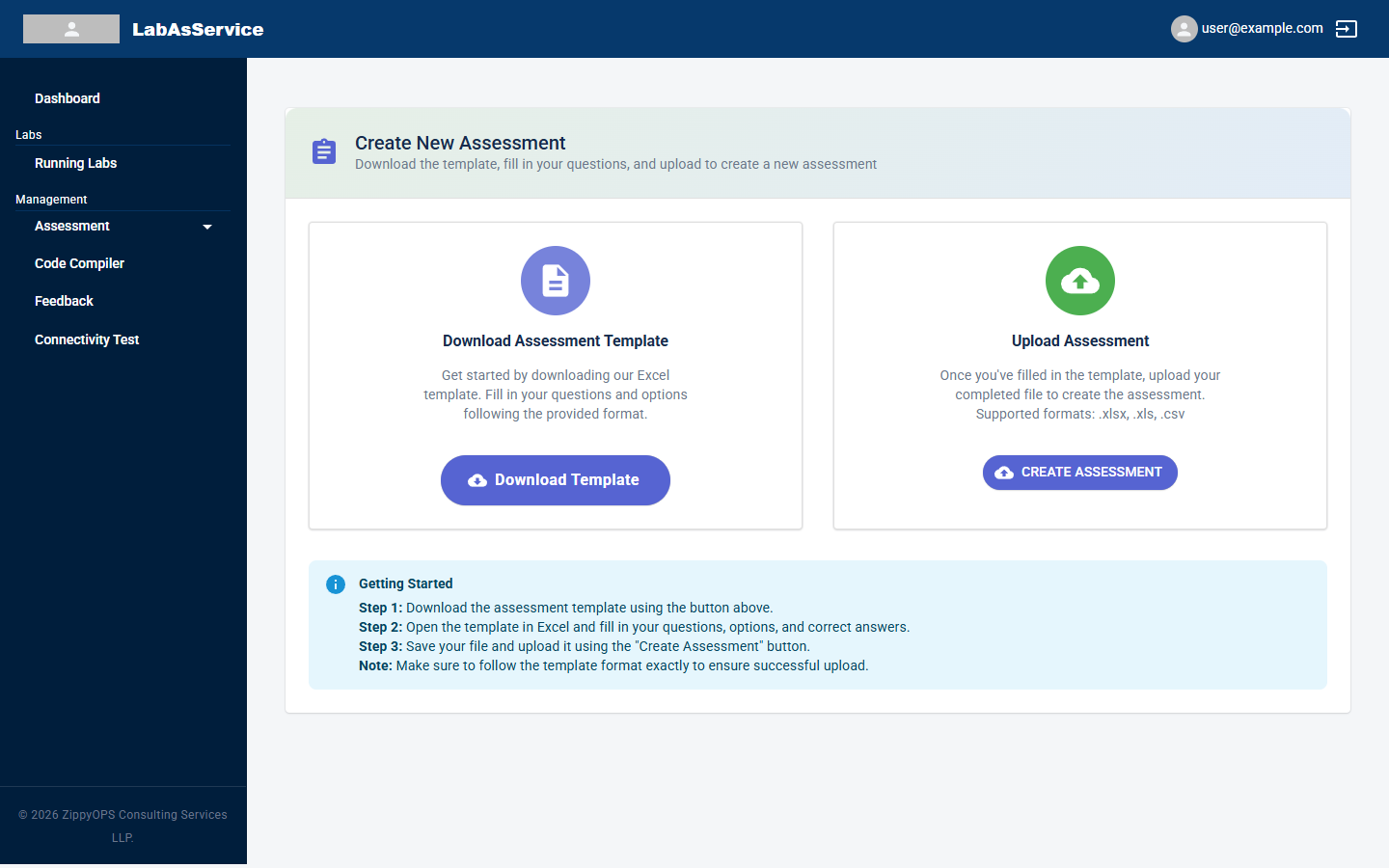
- Select Assessment > Create.
- Select Download Template to download the Excel template.
- Open the template in Excel and fill in your questions, the answer options and the correct answers. Follow the template's format exactly, or the upload will be rejected.
- Save the file. The supported formats are .xlsx, .xls and .csv.
- Select CREATE ASSESSMENT and choose your saved file.
¶ View assessments
Select Assessment > View to browse and download the questions of active assessments.
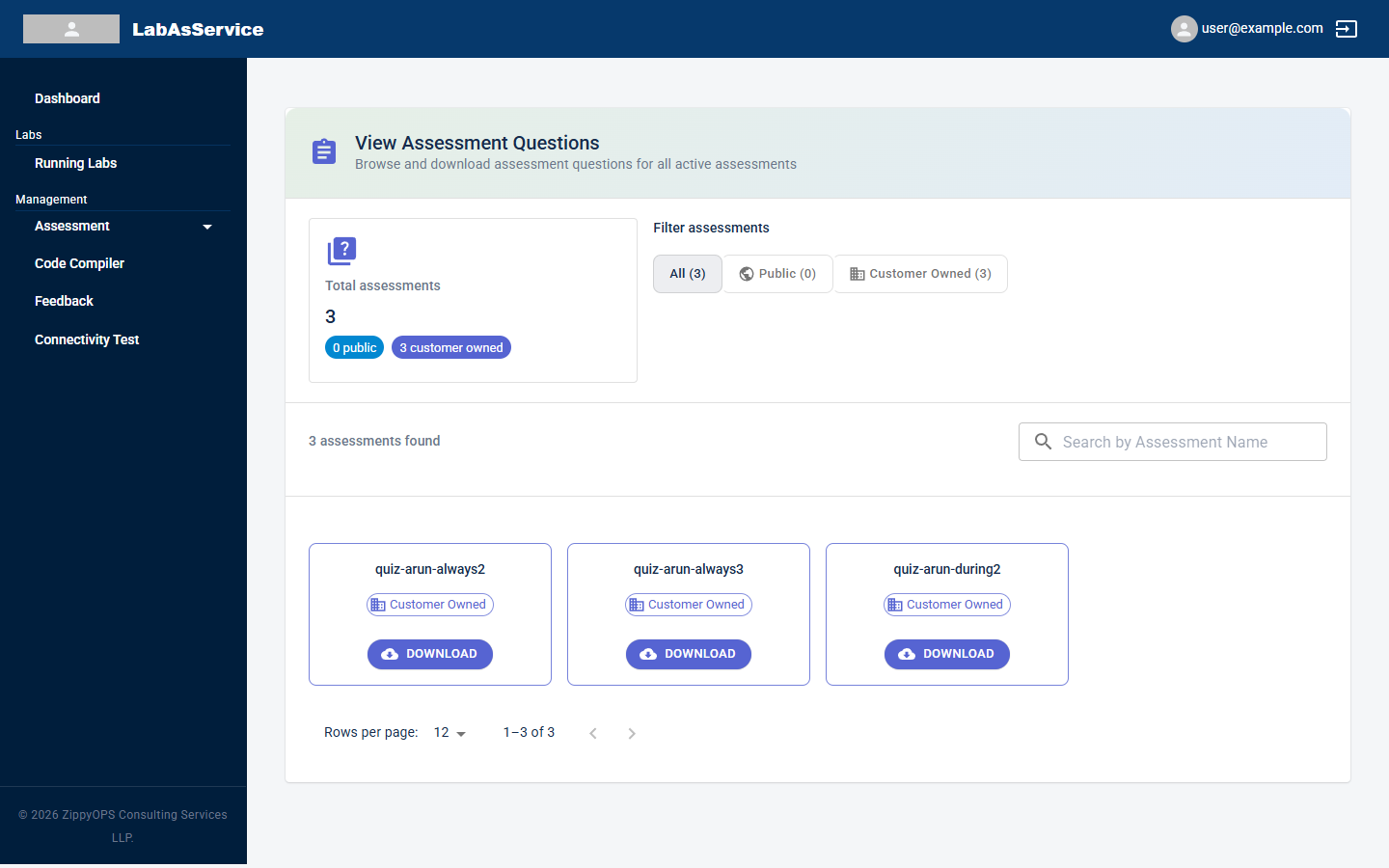
- The Total assessments card shows how many assessments there are, split into public (provided by the platform) and customer owned (created by your organisation).
- Use Filter assessments to show All, Public or Customer Owned assessments.
- Use Search by Assessment Name to find one.
- Select DOWNLOAD on an assessment's card to download its questions.
¶ Edit an assessment
Select Assessment > Edit to change the questions of assessments your organisation owns. Use Search by Assessment Name to find the assessment.
¶ Assign an assessment to labs
Assessments reach trainees only once they are assigned to a lab.
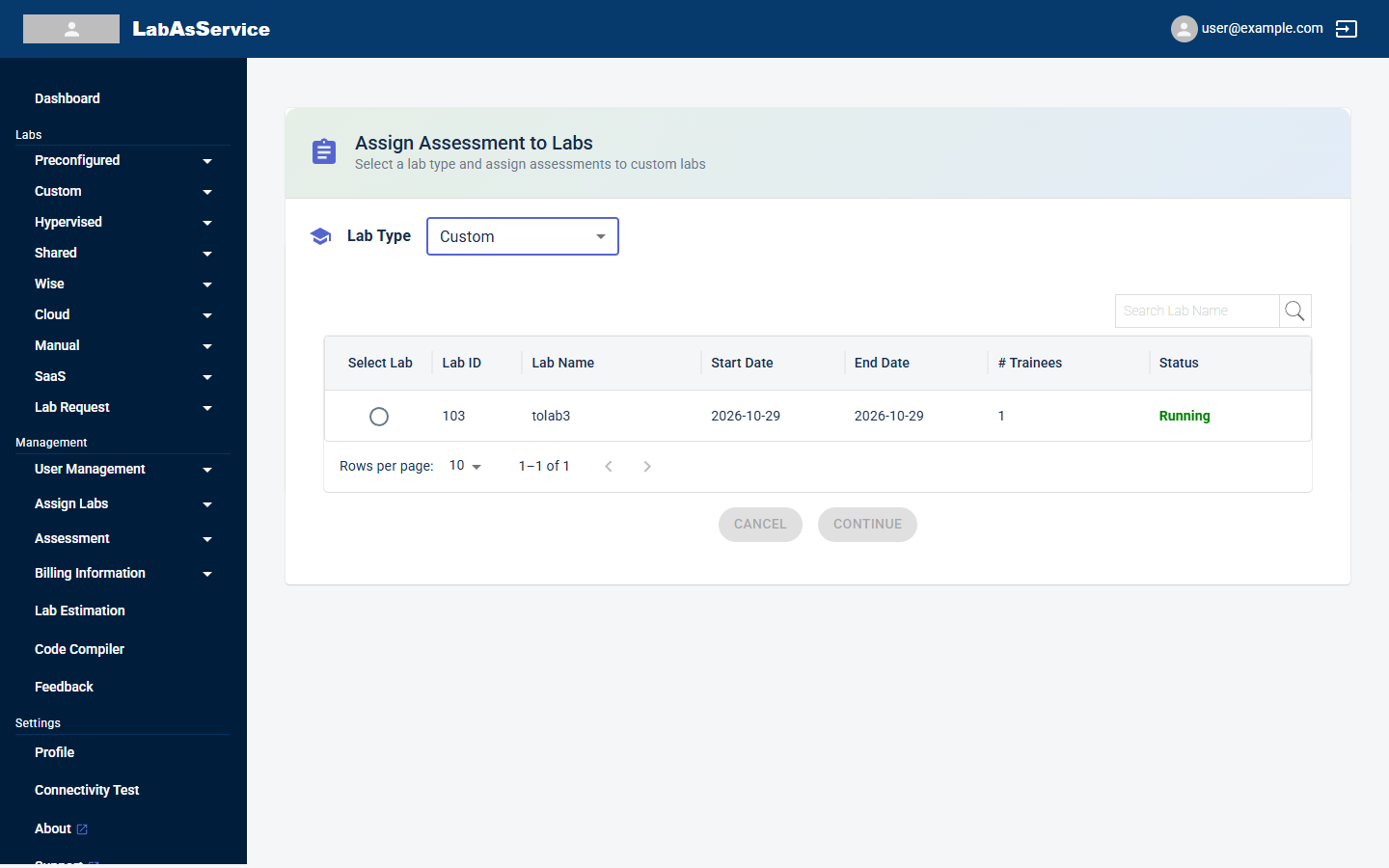
- Select Assessment > Assign.
- Choose the lab type from Lab Type. The options are Preconfigured (the default), Custom, Hypervised, Shared, Cloud, Wise, Manual and SaaS.
- Find your lab in the table. It lists each lab's Lab ID, Lab Name, Start Date, End Date, # Trainees and Status. Use Search Lab Name if the list is long.
- Select the radio button in the Select Lab column to choose the lab. CANCEL and CONTINUE become available.
- Select CONTINUE and follow the prompts to choose the assessment to assign.
When no labs of the chosen type exist, the page shows No Data Available.
¶ Manage assignments
Select Assessment > Manage to see which assessments are assigned to which labs, and to change them. Choose the lab type, then search by lab name, assessment or assignment. When nothing is assigned yet, the page shows No assignments available.
¶ View scores
Select Assessment > Score to see how trainees performed.
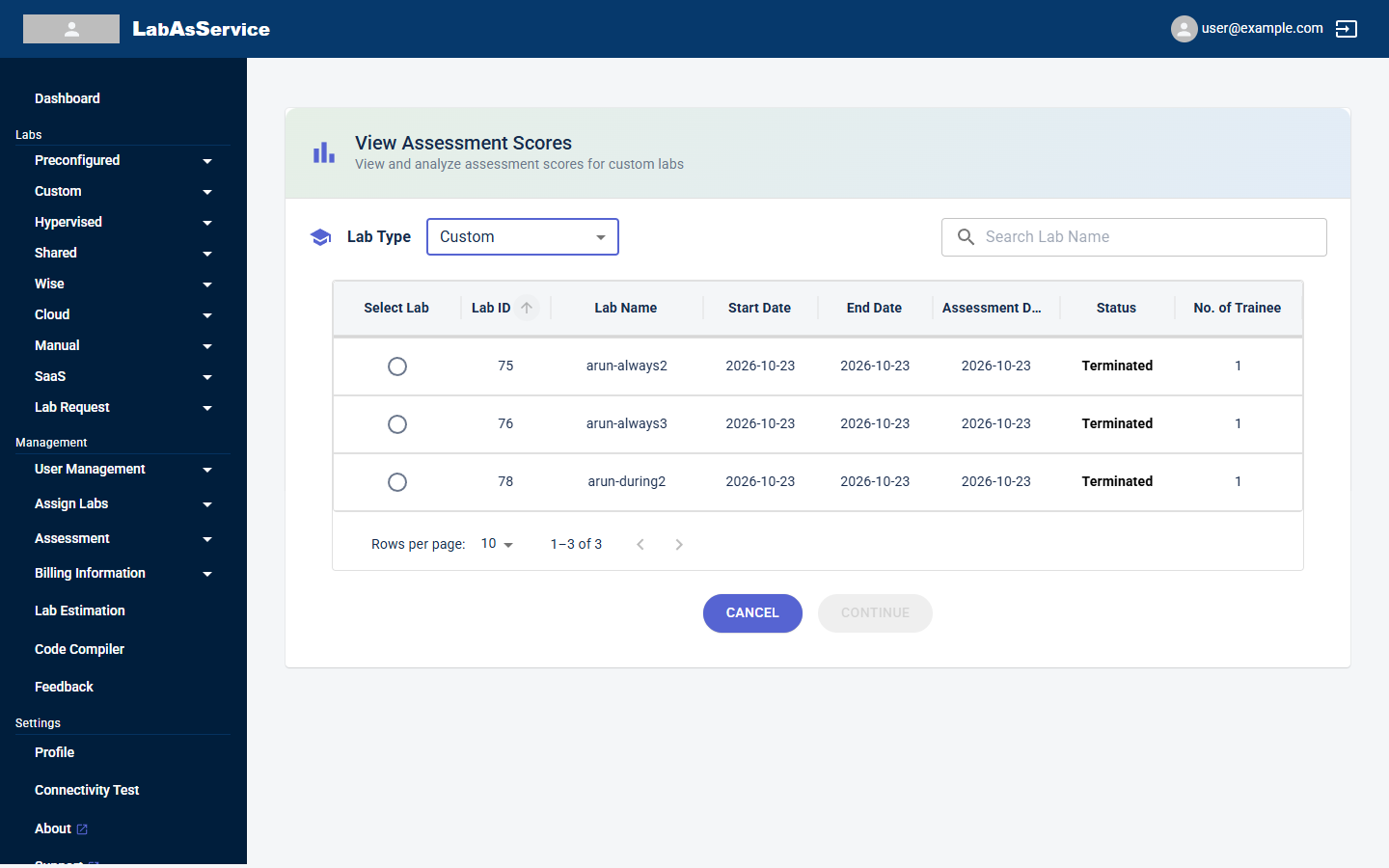
- Choose the lab type from Lab Type.
- Use Search Lab Name to find the lab. The table lists each lab's Lab ID, Lab Name, Start Date, End Date, Assessment Date, Status and No. of Trainee.
- Select the radio button in the Select Lab column, then select CONTINUE to see the scores.
¶ What trainees see
Trainees open their assigned assessments from Assessment in their own sidebar. See Trainee: Assessments.