¶ Getting started
¶ Signing in
How you sign in depends on your role.
¶ Trainers and trainees
- Open the LabAsService home page in your browser.
- Select Login in the top navigation.
- Enter your Email and Password and select SIGN IN. You can also use Sign in with Google if your account was registered that way.
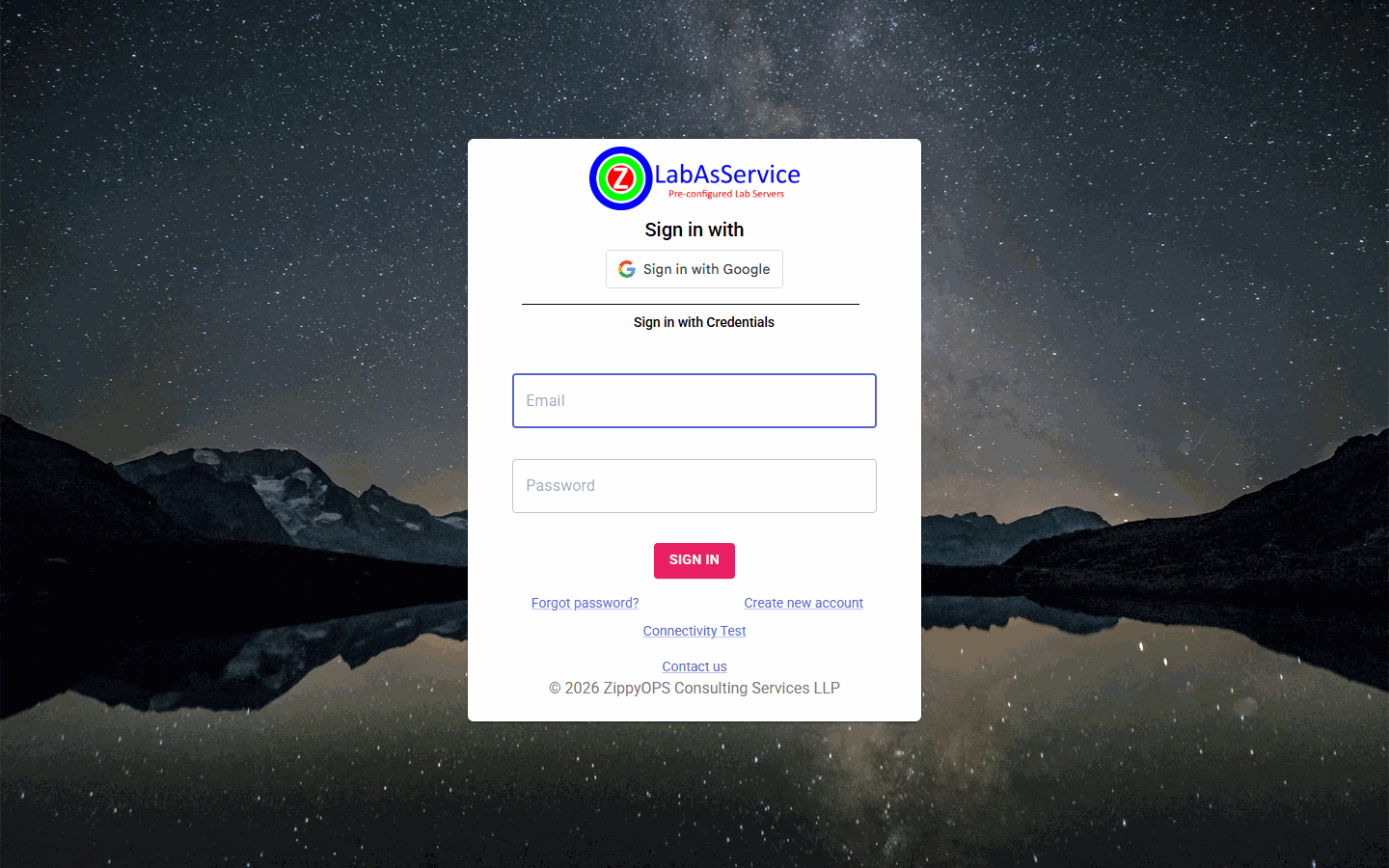
If you do not have an account yet, select Create new account (see Account Registration). If you have forgotten your password, select Forgot password?.
After you sign in:
- Trainees land on Running Labs.
- Trainers and administrators land on the Dashboard.
¶ Administrators
Administrators sign in through their organisation's own login address, in the form https://<portal-address>/<organization-name>. You can find your organisation's address under Profile > Organization login Url.
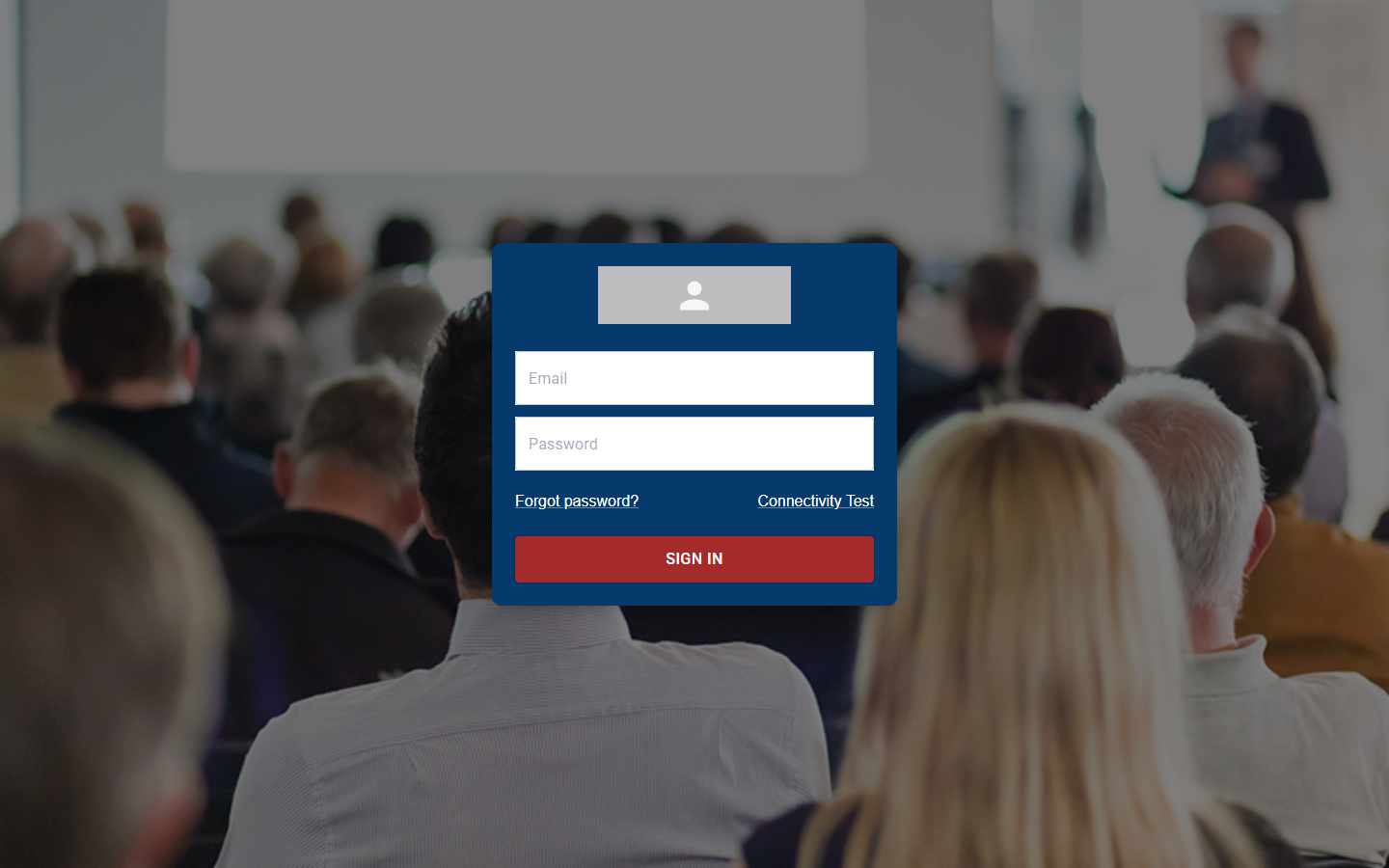
Enter your email and password and select SIGN IN.
¶ Finding your way around
Every page has the same three areas:
| Area | What it contains |
|---|---|
| Header (top) | The LabAsService logo, your account email, and a sign-out icon on the far right |
| Sidebar (left) | The menu for your role. Menu items with an arrow expand to show sub-pages |
| Main area | The page you have opened |
The sidebar is different for each role:
| Role | Sidebar items |
|---|---|
| Trainee | Running Labs, Assessment, Code Compiler, Feedback, Connectivity Test |
| Trainer | Dashboard, Running Labs, Assessment, Code Compiler, Feedback, Connectivity Test |
| Administrator | Dashboard, Labs (one group per lab type), Lab Request, Management (User Management, Assign Labs, Assessment, Billing Information), Lab Estimation, Code Compiler, Feedback, Settings (Profile, Connectivity Test, About, Support, Docs) |
¶ Before you start a lab: check your connection
Labs are reached through your browser, so a blocked network can stop you connecting. Before your first session, run the Connectivity and speed test. It is available from the sign-in page as well as from inside the application.
¶ Signing out
Select the sign-out icon at the right-hand end of the header.